Category: Security

  • When Security Matters Most — Choose 100% Canadian Owned , Choose  Nishva Security

    When Security Matters Most — Choose 100% Canadian Owned , Choose Nishva Security

    In a world where safety is a top priority, having a reliable security partner is no longer an option — it is a necessity. For businesses, institutions, and event organizers across Canada, Nishva Security has become a trusted name by delivering uncompromising protection backed by more than 10 years of expertise. What sets Nishva apart is simple yet powerful: it is 100% Canadian-owned and operated, ensuring every decision is made with local values, knowledge, and commitment to the communities it serves.

    A Decade of Experience You Can Trust

    With over a decade of proven success, Nishva Security has consistently raised the bar in delivering professional security solutions. Their guards are not just present — they are qualified, highly trained professionals who understand the nuances of every environment they protect. This experience gives clients confidence that every operation is supported by extensive knowledge and the latest industry standards.

    Comprehensive Security Services for Every Need

    Whether you are a business owner, a financial institution, an event planner, or part of the aviation industry, Nishva Security has tailored solutions designed to fit your needs. Their service portfolio includes:

    • Mall Security – Ensuring safe shopping environments by deterring theft and managing crowds effectively.
    • Bank and ATM Security – Protecting financial institutions with trained guards who prioritize both safety and discretion.
    • Event Security – Managing small private gatherings to large public events with seamless risk assessment and on-ground execution.
    • Aviation Security – Safeguarding airports and aviation facilities with strict compliance to safety protocols.
    • Industrial and Business Security – Offering vigilant protection for factories, warehouses, and corporate offices.

    By covering such a wide range of sectors, Nishva Security ensures that every client receives services specifically aligned with their security requirements.

    Why 100% Canadian Ownership Matters

    Being completely Canadian-owned and operated, Nishva Security is deeply connected to the communities it serves. Decisions are made locally, without influence from international corporate chains, ensuring quicker responses, personalized service, and a real understanding of the Canadian landscape. This commitment strengthens trust and reinforces the company’s mission to provide security with integrity, responsibility, and care.

    Trained Guards Who Go Beyond the Basics

    At the core of Nishva Security are its people. Every security professional undergoes rigorous screening and training to meet the highest standards. From understanding emergency protocols to mastering conflict resolution and customer service, these professionals are prepared for more than just standing watch — they are trained to act decisively when it matters most. This combination of skill and vigilance makes them invaluable assets to clients who demand absolute reliability.

    Setting the Standard in Canadian Security

    In today’s fast-changing world, businesses and individuals cannot afford to take security lightly. Cyber threats may make headlines, but physical security remains just as critical. From protecting financial assets in banks to maintaining safety at public events, Nishva Security consistently proves that being prepared is always better than being reactive.

    The company’s decade-long presence in the industry speaks volumes about its ability to adapt and grow. Clients know that when they choose Nishva, they are not only getting trained guards but also a partner that values accountability, precision, and long-term relationships.

    Local Knowledge With a National Impact

    Because Nishva Security is firmly rooted in Canada, it brings unique insights into the environments it protects. Understanding local regulations, geography, and cultural expectations allows the company to deliver solutions that international providers often overlook. This local expertise, combined with a national vision, has permitted Nishva to expand steadily while maintaining exceptional service quality.

    Choosing Nishva Is Choosing Peace of Mind

    When you partner with Nishva Security, you are not just hiring guards — you are investing in peace of mind. Whether it is keeping your retail space safe, ensuring uninterrupted business operations, or protecting your high-profile events, Nishva provides consistent results backed by trust and performance.

    In a market crowded with security providers, few can claim to be entirely Canadian-owned and operated while also delivering a full spectrum of customized solutions. Nishva does both, and it does so with a level of professionalism that has earned respect across industries.

    When security matters most, the choice is clear — choose 100% Canadian, choose Nishva Security.

  • Define a custom session duration and terminate active sessions in IAM Identity Center

    Define a custom session duration and terminate active sessions in IAM Identity Center

    Managing access to accounts and applications requires a balance between delivering simple, convenient access and managing the risks associated with active user sessions. Based on your organization’s needs, you might want to make it simple for end users to sign in and to operate long enough to get their work done, without the disruptions associated with requiring re-authentication. You might also consider shortening the session to help meet your compliance or security requirements. At the same time, you might want to terminate active sessions that your users don’t need, such as sessions for former employees, sessions for which the user failed to sign out on a second device, or sessions with suspicious activity.
    With AWS IAM Identity Center (successor to AWS Single Sign-On), you now have the option to configure the appropriate session duration for your organization’s needs while using new session management capabilities to look up active user sessions and revoke unwanted sessions.
    In this blog post, I show you how to use these new features in IAM Identity Center. First, I walk you through how to configure the session duration for your IAM Identity Center users. Then I show you how to identify existing active sessions and terminate them.
    What is IAM Identity Center?
    IAM Identity Center helps you securely create or connect your workforce identities and manage their access centrally across AWS accounts and applications. IAM Identity Center is the recommended approach for workforce identities to access AWS resources. In IAM Identity Center, you can integrate with an external identity provider (IdP), such as Okta Universal Directory, Microsoft Azure Active Directory, or Microsoft Active Directory Domain Services, as an identity source or you can create users directly in IAM Identity Center. The service is built on the capabilities of AWS Identity and Access Management (IAM) and is offered at no additional cost.
    IAM Identity Center sign-in and sessions
    You can use IAM Identity Center to access applications and accounts and to get credentials for the AWS Management Console, AWS Command Line Interface (AWS CLI), and AWS SDK sessions. When you log in to IAM Identity Center through a browser or the AWS CLI, an AWS access portal session is created. When you federate into the console, IAM Identity Center uses the session duration setting on the permission set to control the duration of the session.

    Note: The access portal session duration for IAM Identity Center differs from the IAM permission set session duration, which defines how long a user can access their account through the IAM Identity Center console.

    Before the release of the new session management feature, the AWS access portal session duration was fixed at 8 hours. Now you can configure the session duration for the AWS access portal in IAM Identity Center from 15 minutes to 7 days. The access portal session duration determines how long the user can access the portal, applications, and accounts, and run CLI commands without re-authenticating. If you have an external IdP connected to IAM Identity Center, the access portal session duration will be the lesser of either the session duration that you set in your IdP or the session duration defined in IAM Identity Center. Users can access accounts and applications until the access portal session expires and initiates re-authentication.
    When users access accounts or applications through IAM Identity Center, it creates an additional session that is separate but related to the AWS access portal session. AWS CLI sessions use the AWS access portal session to access roles. The duration of console sessions is defined as part of the permission set that the user accessed. When a console session starts, it continues until the duration expires or the user ends the session. IAM Identity Center-enabled application sessions re-verify the AWS access portal session approximately every 60 minutes. These sessions continue until the AWS access portal session terminates, until another application-specific condition terminates the session, or until the user terminates the session.
    To summarize:

    After a user signs in to IAM Identity Center, they can access their assigned roles and applications for a fixed period, after which they must re-authenticate.
    If a user accesses an assigned permission set, the user has access to the corresponding role for the duration defined in the permission set (or by the user terminating the session).
    The AWS CLI uses the AWS access portal session to access roles. The AWS CLI refreshes the IAM permission set in the background. The CLI job continues to run until the access portal session expires.
    If users access an IAM Identity Center-enabled application, the user can retain access to an application for up to an hour after the access portal session has expired.

    Note: IAM Identity Center doesn’t currently support session management capabilities for Active Directory identity sources.

    For more information about session management features, see Authentication sessions in the documentation.
    Configure session duration
    In this section, I show you how to configure the session duration for the AWS access portal in IAM Identity Center. You can choose a session duration between 15 minutes and 7 days.
    Session duration is a global setting in IAM Identity Center. After you set the session duration, the maximum session duration applies to IAM Identity Center users.
    To configure session duration for the AWS access portal:

    Open the IAM Identity Center console.
    In the left navigation pane, choose Settings.
    On the Settings page, choose the Authentication tab.
    Under Authentication, next to Session settings, choose Configure.
    For Configure session settings, choose a maximum session duration from the list of pre-defined session durations in the dropdown. To set a custom session duration, select Custom duration, enter the length for the session in minutes, and then choose Save.

    Figure 1: Set access portal session duration

    Congratulations! You have just modified the session duration for your users. This new duration will take effect on each user’s next sign-in.
    Find and terminate AWS access portal sessions
    With this new release, you can find active portal sessions for your IAM Identity Center users, and if needed, you can terminate the sessions. This can be useful in situations such as the following:

    A user no longer works for your organization or was removed from projects that gave them access to applications or permission sets that they should no longer use.
    If a device is lost or stolen, the user can contact you to end the session. This reduces the risk that someone will access the device and use the open session.

    In these cases, you can find a user’s active sessions in the AWS access portal, select the session that you’re interested in, and terminate it. Depending on the situation, you might also want to deactivate sign-in for the user from the system before revoking the user’s session. You can deactivate sign-in for users in the IAM Identity Center console or in your third-party IdP.
    If you first deactivate the user’s sign-in in your IdP, and then deactivate the user’s sign-in in IAM Identity Center, deactivation will take effect in IAM Identity Center without synchronization latency. However, if you deactivate the user in IAM Identity Center first, then it is possible that the IdP could activate the user again. By first deactivating the user’s sign-in in your IdP, you can prevent the user from signing in again when you revoke their session. This action is advisable when a user has left your organization and should no longer have access, or if you suspect a valid user’s credentials were stolen and you want to block access until you reset the user’s passwords.
    Termination of the access portal session does not affect the active permission set session started from the access portal. IAM role session duration when assumed from the access portal will last as long as the duration specified in the permission set. For AWS CLI sessions, it can take up to an hour for the CLI to terminate after the access portal session is terminated.

    Tip: Activate multi-factor authentication (MFA) wherever possible. MFA offers an additional layer of protection to help prevent unauthorized individuals from gaining access to systems or data.

    To manage active access portal sessions in the AWS access portal:

    Open the IAM Identity Center console.
    In the left navigation pane, choose Users.
    On the Users page, choose the username of the user whose sessions you want to manage. This takes you to a page with the user’s information.
    On the user’s page, choose the Active sessions tab. The number in parentheses next to Active sessions indicates the number of current active sessions for this user.

    Figure 2: View active access portal sessions

    Select the sessions that you want to delete, and then choose Delete session. A dialog box appears that confirms you’re deleting active sessions for this user.

    Figure 3: Delete selected active sessions

    Review the information in the dialog box, and if you want to continue, choose Delete session.

    Conclusion
    In this blog post, you learned how IAM Identity Center manages sessions, how to modify the session duration for the AWS access portal, and how to view, search, and terminate active access portal sessions. I also shared some tips on how to think about the appropriate session duration for your use case and related steps that you should take when terminating sessions for users who shouldn’t have permission to sign in again after their session has ended.
    With this new feature, you now have more control over user session management. You can use the console to set configurable session lengths based on your organization’s security requirements and desired end-user experience, and you can also terminate sessions, enabling you to manage sessions that are no longer needed or potentially suspicious.
    To learn more, see Manage IAM Identity Center integrated application sessions.
     If you have feedback about this post, submit comments in the Comments section below. If you have questions about this post, contact AWS Support.
    Want more AWS Security news? Follow us on Twitter.

    Ron Cully
    Ron is a Principal Product Manager at AWS where he has led feature and roadmap planning for workforce identity products for over 6 years. He has over 25 years of experience leading networking and directory related product delivery. Ron is passionate about delivering solutions to help make it easier for you to migrate identity-aware workloads, simplify resource and application authorization, and give people a simple sign-in and access experience in the cloud.

    Palak Arora
    Palak is a Senior Product Manager at AWS Identity. She has over eight years of cyber security experience with specialization in Identity and Access Management (IAM) domain. She has helped various customers across different sectors to define their enterprise and customer IAM roadmap and strategy, and improve the overall technology risk landscape.

    Powered by WPeMatico

  • How to set up ongoing replication from your third-party secrets manager to AWS Secrets Manager

    How to set up ongoing replication from your third-party secrets manager to AWS Secrets Manager

    Secrets managers are a great tool to securely store your secrets and provide access to secret material to a set of individuals, applications, or systems that you trust. Across your environments, you might have multiple secrets managers hosted on different providers, which can increase the complexity of maintaining a consistent operating model for your secrets. In these situations, centralizing your secrets in a single source of truth, and replicating subsets of secrets across your other secrets managers, can simplify your operating model.
    This blog post explains how you can use your third-party secrets manager as the source of truth for your secrets, while replicating a subset of these secrets to AWS Secrets Manager. By doing this, you will be able to use secrets that originate and are managed from your third-party secrets manager in Amazon Web Services (AWS) applications or in AWS services that use Secrets Manager secrets.
    I’ll demonstrate this approach in this post by setting up a sample open-source HashiCorp Vault to create and maintain secrets and create a replication mechanism that enables you to use these secrets in AWS by using AWS Secrets Manager. Although this post uses HashiCorp Vault as an example, you can also modify the replication mechanism to use secrets managers from other providers.

    Important: This blog post is intended to provide guidance that you can use when planning and implementing a secrets replication mechanism. The examples in this post are not intended to be run directly in production, and you will need to take security hardening requirements into consideration before deploying this solution. As an example, HashiCorp provides tutorials on hardening production vaults.

    You can use these links to navigate through this post:

    Why and when to consider replicating secrets Two approaches to secrets replication Replicate secrets to AWS Secrets Manager with the pull model Solution overview Set up the solution Step 1: Deploy the solution by using the AWS CDK toolkit Step 2: Initialize the HashiCorp Vault Step 3: Update the Vault connection secret Step 4: (Optional) Set up email notifications for replication failures Test your secret replication Update a secret Secret replication logic Use your secret Manage permissions Options for customizing the sample solution
    Why and when to consider replicating secrets
    The primary use case for this post is for customers who are running applications on AWS and are currently using a third-party secrets manager to manage their secrets, hosted on-premises, in the AWS Cloud, or with a third-party provider. These customers typically have existing secrets vending processes, deployment pipelines, and procedures and processes around the management of these secrets. Customers with such a setup might want to keep their existing third-party secrets manager and have a set of secrets that are accessible to workloads running outside of AWS, as well as workloads running within AWS, by using AWS Secrets Manager.
    Another use case is for customers who are in the process of migrating workloads to the AWS Cloud and want to maintain a (temporary) hybrid form of secrets management. By replicating secrets from an existing third-party secrets manager, customers can migrate their secrets to the AWS Cloud one-by-one, test that they work, integrate the secrets with the intended applications and systems, and once the migration is complete, remove the third-party secrets manager.
    Additionally, some AWS services, such as Amazon Relational Database Service (Amazon RDS) Proxy, AWS Direct Connect MACsec, and AD Connector seamless join (Linux), only support secrets from AWS Secrets Manager. Customers can use secret replication if they have a third-party secrets manager and want to be able to use third-party secrets in services that require integration with AWS Secrets Manager. That way, customers don’t have to manage secrets in two places.
    Two approaches to secrets replication
    In this post, I’ll discuss two main models to replicate secrets from an external third-party secrets manager to AWS Secrets Manager: a pull model and a push model.
    Pull model In a pull model, you can use AWS services such as Amazon EventBridge and AWS Lambda to periodically call your external secrets manager to fetch secrets and updates to those secrets. The main benefit of this model is that it doesn’t require any major configuration to your third-party secrets manager. The AWS resources and mechanism used for pulling secrets must have appropriate permissions and network access to those secrets. However, there could be a delay between the time a secret is created and updated and when it’s picked up for replication, depending on the time interval configured between pulls from AWS to the external secrets manager.
    Push model In this model, rather than periodically polling for updates, the external secrets manager pushes updates to AWS Secrets Manager as soon as a secret is added or changed. The main benefit of this is that there is minimal delay between secret creation, or secret updating, and when that data is available in AWS Secrets Manager. The push model also minimizes the network traffic required for replication since it’s a unidirectional flow. However, this model adds a layer of complexity to the replication, because it requires additional configuration in the third-party secrets manager. More specifically, the push model is dependent on the third-party secrets manager’s ability to run event-based push integrations with AWS resources. This will require a custom integration to be developed and managed on the third-party secrets manager’s side.
    This blog post focuses on the pull model to provide an example integration that requires no additional configuration on the third-party secrets manager.
    Replicate secrets to AWS Secrets Manager with the pull model
    In this section, I’ll walk through an example of how to use the pull model to replicate your secrets from an external secrets manager to AWS Secrets Manager.
    Solution overview

    Figure 1: Secret replication architecture diagram

    The architecture shown in Figure 1 consists of the following main steps, numbered in the diagram:

    A Cron expression in Amazon EventBridge invokes an AWS Lambda function every 30 minutes.
    To connect to the third-party secrets manager, the Lambda function, written in NodeJS, fetches a set of user-defined API keys belonging to the secrets manager from AWS Secrets Manager. These API keys have been scoped down to give read-only access to secrets that should be replicated, to adhere to the principle of least privilege. There is more information on this in Step 3: Update the Vault connection secret.
    The third step has two variants depending on where your third-party secrets manager is hosted:

    The Lambda function is configured to fetch secrets from a third-party secrets manager that is hosted outside AWS. This requires sufficient networking and routing to allow communication from the Lambda function.

    Note: Depending on the location of your third-party secrets manager, you might have to consider different networking topologies. For example, you might need to set up hybrid connectivity between your external environment and the AWS Cloud by using AWS Site-to-Site VPN or AWS Direct Connect, or both.

    The Lambda function is configured to fetch secrets from a third-party secrets manager running on Amazon Elastic Compute Cloud (Amazon EC2).

    Important: To simplify the deployment of this example integration, I’ll use a secrets manager hosted on a publicly available Amazon EC2 instance within the same VPC as the Lambda function (3b). This minimizes the additional networking components required to interact with the secrets manager. More specifically, the EC2 instance runs an open-source HashiCorp Vault. In the rest of this post, I’ll refer to the HashiCorp Vault’s API keys as Vault tokens.

    The Lambda function compares the version of the secret that it just fetched from the third-party secrets manager against the version of the secret that it has in AWS Secrets Manager (by tag). The function will create a new secret in AWS Secrets Manager if the secret does not exist yet, and will update it if there is a new version. The Lambda function will only consider secrets from the third-party secrets manager for replication if they match a specified prefix. For example, hybrid-aws-secrets/.
    In case there is an error synchronizing the secret, an email notification is sent to the email addresses which are subscribed to the Amazon Simple Notification Service (Amazon SNS) Topic deployed. This sample application uses email notifications with Amazon SNS as an example, but you could also integrate with services like ServiceNow, Jira, Slack, or PagerDuty. Learn more about how to use webhooks to publish Amazon SNS messages to external services.

    Set up the solution
    In this section, I walk through deploying the pull model solution displayed in Figure 1 using the following steps: Step 1: Deploy the solution by using the AWS CDK toolkit Step 2: Initialize the HashiCorp Vault Step 3: Update the Vault connection secret Step 4: (Optional) Set up email notifications for replication failures
    Step 1: Deploy the solution by using the AWS CDK toolkit
    For this blog post, I’ve created an AWS Cloud Development Kit (AWS CDK) script, which can be found in this AWS GitHub repository. Using the AWS CDK, I’ve defined the infrastructure depicted in Figure 1 as Infrastructure as Code (IaC), written in TypeScript, ready for you to deploy and try out. The AWS CDK is an open-source software development framework that allows you to write your cloud application infrastructure as code using common programming languages such as TypeScript, Python, Java, Go, and so on.
    Prerequisites:
    To deploy the solution, the following should be in place on your system:

    Git
    Node (version 16 or higher)
    jq
    AWS CDK Toolkit. Install using npm (included in Node setup) by running npm install -g aws-cdk in a local terminal.
    An AWS access key ID and secret access key configured as this setup will interact with your AWS account. See Configuration basics in the AWS Command Line Interface User Guide for more details.
    Docker installed and running on your machine

    To deploy the solution

    Clone the CDK script for secret replication.git clone https://github.com/aws-samples/aws-secrets-manager-hybrid-secret-replication-from-hashicorp-vault.git SecretReplication
    Use the cloned project as the working directory.cd SecretReplication
    Install the required dependencies to deploy the application.npm install
    Adjust any configuration values for your setup in the cdk.json file. For example, you can adjust the secretsPrefix value to change which prefix is used by the Lambda function to determine the subset of secrets that should be replicated from the third-party secrets manager.
    Bootstrap your AWS environments with some resources that are required to deploy the solution. With correctly configured AWS credentials, run the following command.cdk bootstrap The core resources created by bootstrapping are an Amazon Elastic Container Registry (Amazon ECR) repository for the AWS Lambda Docker image, an Amazon Simple Storage Service (Amazon S3) bucket for static assets, and AWS Identity and Access Management (IAM) roles with corresponding IAM policies. You can find a full list of the resources by going to the CDKToolkit stack in AWS CloudFormation after the command has finished.
    Deploy the infrastructure.cdk deploy This command deploys the infrastructure shown in Figure 1 for you by using AWS CloudFormation. For a full list of resources, you can view the SecretsManagerReplicationStack in AWS CloudFormation after the deployment has completed.

    Note: If your local environment does not have a terminal that allows you to run these commands, consider using AWS Cloud9 or AWS CloudShell.

    After the deployment has finished, you should see an output in your terminal that looks like the one shown in Figure 2. If successful, the output provides the IP address of the sample HashiCorp Vault and its web interface.

    Figure 2: AWS CDK deployment output

    Step 2: Initialize the HashiCorp Vault
    As part of the output of the deployment script, you will be given a URL to access the user interface of the open-source HashiCorp Vault. To simplify accessibility, the URL points to a publicly available Amazon EC2 instance running the HashiCorp Vault user interface as shown in step 3b in Figure 1.
    Let’s look at the HashiCorp Vault that was just created. Go to the URL in your browser, and you should see the Raft Storage initialize page, as shown in Figure 3.

    Figure 3: HashiCorp Vault Raft Storage initialize page

    The vault requires an initial configuration to set up storage and get the initial set of root keys. You can go through the steps manually in the HashiCorp Vault’s user interface, but I recommend that you use the initialise_vault.sh script that is included as part of the SecretsManagerReplication project instead.
    Using the HashiCorp Vault API, the initialization script will automatically do the following:

    Initialize the Raft storage to allow the Vault to store secrets locally on the instance.
    Create an initial set of unseal keys for the Vault. Importantly, for demo purposes, the script uses a single key share. For production environments, it’s recommended to use multiple key shares so that multiple shares are needed to reconstruct the root key, in case of an emergency.
    Store the unseal keys in init/vault_init_output.json in your project.
    Unseals the HashiCorp Vault by using the unseal keys generated earlier.
    Enables two key-value secrets engines:

    An engine named after the prefix that you’re using for replication, defined in the cdk.json file. In this example, this is hybrid-aws-secrets. We’re going to use the secrets in this engine for replication to AWS Secrets Manager.
    An engine called super-secret-engine, which you’re going to use to show that your replication mechanism does not have access to secrets outside the engine used for replication.

    Creates three example secrets, two in hybrid-aws-secrets, and one in super-secret-engine.
    Creates a read-only policy, which you can see in the init/replication-policy-payload.json file after the script has finished running, that allows read-only access to only the secrets that should be replicated.
    Creates a new vault token that has the read-only policy attached so that it can be used by the AWS Lambda function later on to fetch secrets for replication.

    To run the initialization script, go back to your terminal, and run the following command. ./initialise_vault.sh
    The script will then ask you for the IP address of your HashiCorp Vault. Provide the IP address (excluding the port) and choose Enter. Input y so that the script creates a couple of sample secrets.
    If everything is successful, you should see an output that includes tokens to access your HashiCorp Vault, similar to that shown in Figure 4.

    Figure 4: Initialize HashiCorp Vault bash script output

    The setup script has outputted two tokens: one root token that you will use for administrator tasks, and a read-only token that will be used to read secret information for replication. Make sure that you can access these tokens while you’re following the rest of the steps in this post.

    Note: The root token is only used for demonstration purposes in this post. In your production environments, you should not use root tokens for regular administrator actions. Instead, you should use scoped down roles depending on your organizational needs. In this case, the root token is used to highlight that there are secrets under super-secret-engine/ which are not meant for replication. These secrets cannot be seen, or accessed, by the read-only token.

    Go back to your browser and refresh your HashiCorp Vault UI. You should now see the Sign in to Vault page. Sign in using the Token method, and use the root token. If you don’t have the root token in your terminal anymore, you can find it in the init/vault_init_output.json file.
    After you sign in, you should see the overview page with three secrets engines enabled for you, as shown in Figure 5.

    Figure 5: HashiCorp Vault secrets engines overview

    If you explore hybrid-aws-secrets and super-secret-engine, you can see the secrets that were automatically created by the initialization script. For example, first-secret-for-replication, which contains a sample key-value secret with the key secrets and value manager.
    If you navigate to Policies in the top navigation bar, you can also see the aws-replication-read-only policy, as shown in Figure 6. This policy provides read-only access to only the hybrid-aws-secrets path.

    Figure 6: Read-only HashiCorp Vault token policy

    The read-only policy is attached to the read-only token that we’re going to use in the secret replication Lambda function. This policy is important because it scopes down the access that the Lambda function obtains by using the token to a specific prefix meant for replication. For secret replication we only need to perform read operations. This policy ensures that we can read, but cannot add, alter, or delete any secrets in HashiCorp Vault using the token.
    You can verify the read-only token permissions by signing into the HashiCorp Vault user interface using the read-only token rather than the root token. Now, you should only see hybrid-aws-secrets. You no longer have access to super-secret-engine, which you saw in Figure 5. If you try to create or update a secret, you will get a permission denied error.
    Great! Your HashiCorp Vault is now ready to have its secrets replicated from hybrid-aws-secrets to AWS Secrets Manager. The next section describes a final configuration that you need to do to allow access to the secrets in HashiCorp Vault by the replication mechanism in AWS.
    Step 3: Update the Vault connection secret
    To allow secret replication, you must give the AWS Lambda function access to the HashiCorp Vault read-only token that was created by the initialization script. To do that, you need to update the vault-connection-secret that was initialized in AWS Secrets Manager as part of your AWS CDK deployment.
    For demonstration purposes, I’ll show you how to do that by using the AWS Management Console, but you can also do it programmatically by using the AWS Command Line Interface (AWS CLI) or AWS SDK with the update-secret command.
    To update the Vault connection secret (console)

    In the AWS Management Console, go to AWS Secrets Manager > Secrets > hybrid-aws-secrets/vault-connection-secret.
    Under Secret Value, choose Retrieve Secret Value, and then choose Edit.
    Update the vaultToken value to contain the read-only token that was generated by the initialization script.

    Figure 7: AWS Secrets Manager – Vault connection secret page

    Step 4: (Optional) Set up email notifications for replication failures
    As highlighted in Figure 1, the Lambda function will send an email by using Amazon SNS to a designated email address whenever one or more secrets fails to be replicated. You will need to configure the solution to use the correct email address. To do this, go to the cdk.json file at the root of the SecretReplication folder and adjust the notificationEmail parameter to an email address that you own. Once done, deploy the changes using the cdk deploy command. Within a few minutes, you’ll get an email requesting you to confirm the subscription. Going forward, you will receive an email notification if one or more secrets fails to replicate.
    Test your secret replication
    You can either wait up to 30 minutes for the Lambda function to be invoked automatically to replicate the secrets, or you can manually invoke the function.
    To test your secret replication

    Open the AWS Lambda console and find the Secret Replication function (the name starts with SecretsManagerReplication-SecretReplication).
    Navigate to the Test tab.
    For the text event action, select Create new event, create an event using the default parameters, and then choose the Test button on the right-hand side, as shown in Figure 8.

    Figure 8: AWS Lambda – Test page to manually invoke the function

    This will run the function. You should see a success message, as shown in Figure 9. If this is the first time the Lambda function has been invoked, you will see in the results that two secrets have been created.

    Figure 9: AWS Lambda function output

    You can find the corresponding logs for the Lambda function invocation in a Log group in AWS CloudWatch matching the name /aws/lambda/SecretsManagerReplication-SecretReplicationLambdaF-XXXX.
    To verify that the secrets were added, navigate to AWS Secrets Manager in the console, and in addition to the vault-connection-secret that you edited before, you should now also see the two new secrets with the same hybrid-aws-secrets prefix, as shown in Figure 10.

    Figure 10: AWS Secrets Manager overview – New replicated secrets

    For example, if you look at first-secret-for-replication, you can see the first version of the secret, with the secret key secrets and secret value manager, as shown in Figure 11.

    Figure 11: AWS Secrets Manager – New secret overview showing values and version number

    Success! You now have access to the secret values that originate from HashiCorp Vault in AWS Secrets Manager. Also, notice how there is a version tag attached to the secret. This is something that is necessary to update the secret, which you will learn more about in the next two sections.
    Update a secret
    It’s a recommended security practice to rotate secrets frequently. The Lambda function in this solution not only replicates secrets when they are created — it also periodically checks if existing secrets in AWS Secrets Manager should be updated when the third-party secrets manager (HashiCorp Vault in this case) has a new version of the secret. To validate that this works, you can manually update a secret in your HashiCorp Vault and observe its replication in AWS Secrets Manager in the same way as described in the previous section. You will notice that the version tag of your secret gets updated automatically when there is a new secret replication from the third-party secrets manager to AWS Secrets Manager.
    Secret replication logic
    This section will explain in more detail the logic behind the secret replication. Consider the following sequence diagram, which explains the overall logic implemented in the Lambda function.

    Figure 12: State diagram for secret replication logic

    This diagram highlights that the Lambda function will first fetch a list of secret names from the HashiCorp Vault. Then, the function will get a list of secrets from AWS Secrets Manager, matching the prefix that was configured for replication. AWS Secrets Manager will return a list of the secrets that match this prefix and will also return their metadata and tags. Note that the function has not fetched any secret material yet.
    Next, the function will loop through each secret name that HashiCorp Vault gave and will check if the secret exists in AWS Secrets Manager:

    If there is no secret that matches that name, the function will fetch the secret material from HashiCorp Vault, including the version number, and create a new secret in AWS Secrets Manager. It will also add a version tag to the secret to match the version.
    If there is a secret matching that name in AWS Secrets Manager already, the Lambda function will first fetch the metadata from that secret in HashiCorp Vault. This is required to get the version number of the secret, because the version number was not exposed when the function got the list of secrets from HashiCorp Vault initially. If the secret version from HashiCorp Vault does not match the version value of the secret in AWS Secrets Manager (for example, the version in HashiCorp vault is 2, and the version in AWS Secrets manager is 1), an update is required to get the values synchronized again. Only now will the Lambda function fetch the actual secret material from HashiCorp Vault and update the secret in AWS Secrets Manager, including the version number in the tag.

    The Lambda function fetches metadata about the secrets, rather than just fetching the secret material from HashiCorp Vault straight away. Typically, secrets don’t update very often. If this Lambda function is called every 30 minutes, then it should not have to add or update any secrets in the majority of invocations. By using metadata to determine whether you need the secret material to create or update secrets, you minimize the number of times secret material is fetched both from HashiCorp Vault and AWS Secrets Manager.

    Note: The AWS Lambda function has permissions to pull certain secrets from HashiCorp Vault. It is important to thoroughly review the Lambda code and any subsequent changes to it to prevent leakage of secrets. For example, you should ensure that the Lambda function does not get updated with code that unintentionally logs secret material outside the Lambda function.

    Use your secret
    Now that you have created and replicated your secrets, you can use them in your AWS applications or AWS services that are integrated with Secrets Manager. For example, you can use the secrets when you set up connectivity for a proxy in Amazon RDS, as follows.
    To use a secret when creating a proxy in Amazon RDS

    Go to the Amazon RDS service in the console.
    In the left navigation pane, choose Proxies, and then choose Create Proxy.
    On the Connectivity tab, you can now select first-secret-for-replication or second-secret-for-replication, which were created by the Lambda function after replicating them from the HashiCorp Vault.

    Figure 13: Amazon RDS Proxy – Example of using replicated AWS Secrets Manager secrets

    It is important to remember that the consumers of the replicated secrets in AWS Secrets Manager will require scoped-down IAM permissions to use the secrets and AWS Key Management Service (AWS KMS) keys that were used to encrypt the secrets. For example, see Step 3: Create IAM role and policy on the Set up shared database connections with Amazon RDS Proxy page.
    Manage permissions
    Due to the sensitive nature of the secrets, it is important that you scope down the permissions to the least amount required to prevent inadvertent access to your secrets. The setup adopts a least-privilege permission strategy, where only the necessary actions are explicitly allowed on the resources that are required for replication. However, the permissions should be reviewed in accordance to your security standards.
    In the architecture of this solution, there are two main places where you control access to the management of your secrets in Secrets Manager.
    Lambda execution IAM role: The IAM role assumed by the Lambda function during execution contains the appropriate permissions for secret replication. There is an additional safety measure, which explicitly denies any action to a resource that is not required for the replication. For example, the Lambda function only has permission to publish to the Amazon SNS topic that is created for the failed replications, and will explicitly deny a publish action to any other topic. Even if someone accidentally adds an allow to the policy for a different topic, the explicit deny will still block this action.
    AWS KMS key policy: When other services need to access the replicated secret in AWS Secrets Manager, they need permission to use the hybrid-aws-secrets-encryption-key AWS KMS key. You need to allow the principal these permissions through the AWS KMS key policy. Additionally, you can manage permissions to the AWS KMS key for the principal through an identity policy. For example, this is required when accessing AWS KMS keys across AWS accounts. See Permissions for AWS services in key policies and Specifying KMS keys in IAM policy statements in the AWS KMS Developer Guide.
    Options for customizing the sample solution
    The solution that was covered in this post provides an example for replication of secrets from HashiCorp Vault to AWS Secrets Manager using the pull model. This section contains additional customization options that you can consider when setting up the solution, or your own variation of it.

    Depending on the solution that you’re using, you might have access to different metadata attached to the secrets, which you can use to determine if a secret should be updated. For example, if you have access to data that represents a last_updated_datetime property, you could use this to infer whether or not a secret ought to be updated.
    It is a recommended practice to not use long-lived tokens wherever possible. In this sample, I used a static vault token to give the Lambda function access to the HashiCorp Vault. Depending on the solution that you’re using, you might be able to implement better authentication and authorization mechanisms. For example, HashiCorp Vault allows you to use IAM auth by using AWS IAM, rather than a static token.
    This post addressed the creation of secrets and updating of secrets, but for your production setup, you should also consider deletion of secrets. Depending on your requirements, you can choose to implement a strategy that works best for you to handle secrets in AWS Secrets Manager once the original secret in HashiCorp Vault has been deleted. In the pull model, you could consider removing a secret in AWS Secrets Manager if the corresponding secret in your external secrets manager is no longer present.
    In the sample setup, the same AWS KMS key is used to encrypt both the environment variables of the Lambda function, and the secrets in AWS Secrets Manager. You could choose to add an additional AWS KMS key (which would incur additional cost), to have two separate keys for these tasks. This would allow you to apply more granular permissions for the two keys in the corresponding KMS key policies or IAM identity policies that use the keys.

    Conclusion
    In this blog post, you’ve seen how you can approach replicating your secrets from an external secrets manager to AWS Secrets Manager. This post focused on a pull model, where the solution periodically fetched secrets from an external HashiCorp Vault and automatically created or updated the corresponding secret in AWS Secrets Manager. By using this model, you can now use your external secrets in your AWS Cloud applications or services that have an integration with AWS Secrets Manager.
    If you have feedback about this post, submit comments in the Comments section below. If you have questions about this post, start a new thread on the AWS Secrets Manager re:Post or contact AWS Support.
    Want more AWS Security news? Follow us on Twitter.

    Laurens Brinker
    Laurens is a Software Development Engineer working for AWS Security and is based in London. Previously, Laurens worked as a Security Solutions Architect at AWS, where he helped customers running their workloads securely in the AWS Cloud. Outside of work, Laurens enjoys cycling, a casual game of chess, and building open source projects.

    Powered by WPeMatico

  • AWS achieves ISO 20000-1:2018 certification for 109 services

    AWS achieves ISO 20000-1:2018 certification for 109 services

    We continue to expand the scope of our assurance programs at Amazon Web Services (AWS) and are pleased to announce that AWS Regions and AWS Edge locations are now certified by the International Organization for Standardization (ISO) 20000-1:2018 standard. This certification demonstrates our continuous commitment to adhere to the heightened expectations for cloud service providers.
    Published by the International Organization for Standardization (ISO), ISO 20000-1:2018 helps organizations specify requirements for establishing, implementing, maintaining, and continually improving a Service Management System (SMS).
    AWS was evaluated by EY CertifyPoint, an independent third-party auditor. The Certificate of Compliance illustrating the AWS compliance status is available through AWS Artifact. AWS Artifact is a self-service portal for on-demand access to AWS compliance reports. Sign in to AWS Artifact in the AWS Management Console, or learn more at Getting Started with AWS Artifact.
    As of this writing, 109 services offered globally are in scope of this certification. For up-to-date information, including when additional services are added, see the AWS ISO 20000-1:2018 certification webpage.
    AWS strives to continuously bring services into scope of its compliance programs to help you meet your architectural and regulatory needs. Reach out to your AWS account team if you have questions or feedback about ISO 20000-1:2018 compliance.
    To learn more about our compliance and security programs, see AWS Compliance Programs. As always, we value your feedback and questions; you can reach out to the AWS Compliance team through the Contact Us page.
     If you have feedback about this post, submit comments in the Comments section below.
    Want more AWS Security how-to content, news, and feature announcements? Follow us on Twitter.

    Rodrigo Fiuza
    Rodrigo is a Security Audit Manager at AWS, based in São Paulo. He leads audits, attestations, certifications, and assessments across Latin America, Caribbean and Europe. Rodrigo has previously worked in risk management, security assurance, and technology audits for the past 12 years.

    Powered by WPeMatico

  • Reduce risk by implementing HttpOnly cookie authentication in Amazon API Gateway

    Reduce risk by implementing HttpOnly cookie authentication in Amazon API Gateway

    Some web applications need to protect their authentication tokens or session IDs from cross-site scripting (XSS). It’s an Open Web Application Security Project (OWASP) best practice for session management to store secrets in the browsers’ cookie store with the HttpOnly attribute enabled. When cookies have the HttpOnly attribute set, the browser will prevent client-side JavaScript code from accessing the value. This reduces the risk of secrets being compromised.
    In this blog post, you’ll learn how to store access tokens and authenticate with HttpOnly cookies in your own workloads when using Amazon API Gateway as the client-facing endpoint. The tutorial in this post will show you a solution to store OAuth2 access tokens in the browser cookie store, and verify user authentication through Amazon API Gateway. This post describes how to use Amazon Cognito to issue OAuth2 access tokens, but the solution is not limited to OAuth2. You can use other kinds of tokens or session IDs.
    The solution consists of two decoupled parts:

    OAuth2 flow
    Authentication check

    Note: This tutorial takes you through detailed step-by-step instructions to deploy an example solution. If you prefer to deploy the solution with a script, see the api-gw-http-only-cookie-auth GitHub repository.

    Prerequisites

    You should have an AWS account.
    You should have level 200-300 knowledge about the OAuth2 protocol.
    You should have the AWS Command Line Interface (AWS CLI) installed.
    You should have the AWS Toolkit for Visual Studio Code installed, so you can simply upload your code.
    You should have Node.js installed on your local machine.
    This solution uses the following services:

    Amazon Cognito
    Amazon API Gateway
    AWS Lambda

    No costs should incur when you deploy the application from this tutorial because the services you’re going to use are included in the AWS Free Tier. However, be aware that small charges may apply if you have other workloads running in your AWS account and exceed the free tier. Make sure to clean up your resources from this tutorial after deployment.
    Solution architecture
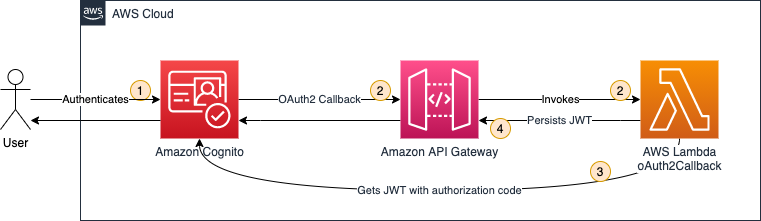
    This solution uses Amazon Cognito, Amazon API Gateway, and AWS Lambda to build a solution that persists OAuth2 access tokens in the browser cookie store. Figure 1 illustrates the solution architecture for the OAuth2 flow.

    Figure 1: OAuth2 flow solution architecture

    A user authenticates by using Amazon Cognito.
    Amazon Cognito has an OAuth2 redirect URI pointing to your API Gateway endpoint and invokes the integrated Lambda function oAuth2Callback.
    The oAuth2Callback Lambda function makes a request to the Amazon Cognito token endpoint with the OAuth2 authorization code to get the access token.
    The Lambda function returns a response with the Set-Cookie header, instructing the web browser to persist the access token as an HttpOnly cookie. The browser will automatically interpret the Set-Cookie header, because it’s a web standard. HttpOnly cookies can’t be accessed through JavaScript—they can only be set through the Set-Cookie header.

    After the OAuth2 flow, you are set up to issue and store access tokens. Next, you need to verify that users are authenticated before they are allowed to access your protected backend. Figure 2 illustrates how the authentication check is handled.

    Figure 2: Authentication check solution architecture

    A user requests a protected backend resource. The browser automatically attaches HttpOnly cookies to every request, as defined in the web standard.
    The Lambda function oAuth2Authorizer acts as the Lambda authorizer for HTTP APIs. It validates whether requests are authenticated. If requests include the proper access token in the request cookie header, then it allows the request.
    API Gateway only passes through requests that are authenticated.

    Amazon Cognito is not involved in the authentication check, because the Lambda function can validate the OAuth2 access tokens by using a JSON Web Token (JWT) validation check.
    1. Deploying the OAuth2 flow
    In this section, you’ll deploy the first part of the solution, which is the OAuth2 flow. The OAuth2 flow is responsible for issuing and persisting OAuth2 access tokens in the browser’s cookie store.
    1.1. Create a mock protected backend
    As shown in in Figure 2, you need to protect a backend. For the purposes of this post, you create a mock backend by creating a simple Lambda function with a default response.
    To create the Lambda function

    In the Lambda console, choose Create function.

    Note: Make sure to select your desired AWS Region.

    Choose Author from scratch as the option to create the function.
    In the Basic information section as shown in , enter or select the following values:

    For Function name, enter getProtectedResource.
    For Runtime, select Node.js 16.x.
    For Architecture, select arm64, because arm64 is designed to be faster and cheaper.

    Choose Create function.

    Figure 3: Configuring the getProtectedResource Lambda function

    The default Lambda function code returns a simple Hello from Lambda message, which is sufficient to demonstrate the concept of this solution.
    1.2. Create an HTTP API in Amazon API Gateway
    Next, you create an HTTP API by using API Gateway. Either an HTTP API or a REST API will work. In this example, choose HTTP API because it’s offered at a lower price point (for this tutorial you will stay within the free tier).
    To create the API Gateway API

    In the API Gateway console, under HTTP API, choose Build.
    On the Create and configure integrations page, as shown in Figure 4, choose Add integration, then enter or select the following values:

    Select Lambda.
    For Lambda function, select the getProtectedResource Lambda function that you created in the previous section.
    For API name, enter a name. In this example, I used MyApp.
    Choose Next.

    Figure 4: Configuring API Gateway integrations and API name

    On the Configure routes page, as shown in Figure 5, enter or select the following values:

    For Method, select GET.
    For Resource path, enter / (a single forward slash).
    For Integration target, select the getProtectedResource Lambda function.
    Choose Next.

    Figure 5: Configuring API Gateway routes

    On the Configure stages page, keep all the default options, and choose Next.
    On the Review and create page, choose Create.
    Note down the value of Invoke URL, as shown in Figure 6.

    Figure 6: Note down the invoke URL

    Now it’s time to test your API Gateway API. Paste the value of Invoke URL into your browser. You’ll see the following message from your Lambda function: Hello from Lambda.
    1.3. Use Amazon Cognito
    You’ll use Amazon Cognito user pools to create and maintain a user directory, and add sign-up and sign-in to your web application.
    To create an Amazon Cognito user pool

    In the Amazon Cognito console, choose Create user pool.
    On the Authentication providers page, as shown in Figure 7, for Cognito user pool sign-in options, select Email, then choose Next.

    Figure 7: Configuring authentication providers

    In the Multi-factor authentication pane of the Configure Security requirements page, as shown in Figure 8, choose your MFA enforcement. For this example, choose No MFA to make it simpler for you to test your solution. However, in production for data sensitive workloads you should choose Require MFA – Recommended. Choose Next.

    Figure 8: Configuring MFA

    On the Configure sign-up experience page, keep all the default options and choose Next.
    On the Configure message delivery page, as shown in Figure 9, choose your email provider. For this example, choose Send email with Cognito to make it simple to test your solution. In production workloads, you should choose Send email with Amazon SES – Recommended. Choose Next.

    Figure 9: Configuring email

    In the User pool name section of the Integrate your app page, as shown in Figure 10, enter or select the following values:

    For User pool name, enter a name. In this example, I used MyUserPool.

    Figure 10: Configuring user pool name

    In the Hosted authentication pages section, as shown in Figure 11, select Use the Cognito Hosted UI.

    Figure 11: Configuring hosted authentication pages

    In the Domain section, as shown in Figure 12, for Domain type, choose Use a Cognito domain. For Cognito domain, enter a domain name. Note that domains in Cognito must be unique. Make sure to enter a unique name, for example by appending random numbers at the end of your domain name. For this example, I used https://http-only-cookie-secured-app.

    Figure 12: Configuring an Amazon Cognito domain

    In the Initial app client section, as shown in Figure 13, enter or select the following values:

    For App type, keep the default setting Public client.
    For App client name, enter a friendly name. In this example, I used MyAppClient.
    For Client secret, keep the default setting Don’t generate a client secret.
    For Allowed callback URLs, enter /oauth2/callback, replacing with the invoke URL you noted down from API Gateway in the previous section.

    Figure 13: Configuring the initial app client

    Choose Next.

    Choose Create user pool.

    Next, you need to retrieve some Amazon Cognito information for later use.
    To note down Amazon Cognito information

    In the Amazon Cognito console, choose the user pool you created in the previous steps.
    Under User pool overview, make note of the User pool ID value.
    On the App integration tab, under Cognito Domain, make note of the Domain value.
    Under App client list, make note of the Client ID value.
    Under App client list, choose the app client name you created in the previous steps.
    Under Hosted UI, make note of the Allowed callback URLs value.

    Next, create the user that you will use in a later section of this post to run your test.
    To create a user

    In the Amazon Cognito console, choose the user pool you created in the previous steps.
    Under Users, choose Create user.
    For Email address, enter user@example.com. For this tutorial, you don’t need to send out actual emails, so the email address does not need to actually exist.
    Choose Mark email address as verified.
    For password, enter a password you can remember (or even better: use a password generator).
    Remember the email and password for later use.
    Choose Create user.

    1.4. Create the Lambda function oAuth2Callback
    Next, you create the Lambda function oAuth2Callback, which is responsible for issuing and persisting the OAuth2 access tokens.
    To create the Lambda function oAuth2Callback

    In the Lambda console, choose Create function.

    Note: Make sure to select your desired Region.

    For Function name, enter oAuth2Callback.
    For Runtime, select Node.js 16.x.
    For Architecture, select arm64.
    Choose Create function.

    After you create the Lambda function, you need to add the code. Create a new folder on your local machine and open it with your preferred integrated development environment (IDE). Add the package.json and index.js files, as shown in the following examples.
    package.json
    {
    “name”: “oAuth2Callback”,
    “version”: “0.0.1”,
    “dependencies”: {
    “axios”: “^0.27.2”,
    “qs”: “^6.11.0”
    }
    }
    In a terminal at the root of your created folder, run the following command.
    $ npm install
    In the index.js example code that follows, be sure to replace the placeholders with your values.
    index.js
    const qs = require(“qs”);
    const axios = require(“axios”).default;
    exports.handler = async function (event) {
    const code = event.queryStringParameters?.code;
    if (code == null) {
    return {
    statusCode: 400,
    body: “code query param required”,
    };
    }
    const data = {
    grant_type: “authorization_code”,
    client_id: “”,
    // The redirect has already happened, but you still need to pass the URI for validation, so a valid oAuth2 access token can be generated
    redirect_uri: encodeURI(“”),
    code: code,
    };
    // Every Cognito instance has its own token endpoints. For more information check the documentation: https://docs.aws.amazon.com/cognito/latest/developerguide/token-endpoint.html
    const res = await axios.post(
    “/oauth2/token”,
    qs.stringify(data),
    {
    headers: {
    “Content-Type”: “application/x-www-form-urlencoded”,
    },
    }
    );
    return {
    statusCode: 302,
    // These headers are returned as part of the response to the browser.
    headers: {
    // The Location header tells the browser it should redirect to the root of the URL
    Location: “/”,
    // The Set-Cookie header tells the browser to persist the access token in the cookie store
    “Set-Cookie”: `accessToken=${res.data.access_token}; Secure; HttpOnly; SameSite=Lax; Path=/`,
    },
    };
    };
    Along with the HttpOnly attribute, you pass along two additional cookie attributes:

    Secure – Indicates that cookies are only sent by the browser to the server when a request is made with the https: scheme.
    SameSite – Controls whether or not a cookie is sent with cross-site requests, providing protection against cross-site request forgery attacks. You set the value to Lax because you want the cookie to be set when the user is forwarded from Amazon Cognito to your web application (which runs under a different URL).

    For more information, see Using HTTP cookies on the MDN Web Docs site.
    Afterwards, upload the code to the oAuth2Callback Lambda function as described in Upload a Lambda Function in the AWS Toolkit for VS Code User Guide.
    1.5. Configure an OAuth2 callback route in API Gateway
    Now, you configure API Gateway to use your new Lambda function through a Lambda proxy integration.
    To configure API Gateway to use your Lambda function

    In the API Gateway console, under APIs, choose your API name. For me, the name is MyApp.
    Under Develop, choose Routes.
    Choose Create.
    Enter or select the following values:

    For method, select GET.
    For path, enter /oauth2/callback.

    Choose Create.
    Choose GET under /oauth2/callback, and then choose Attach integration.
    Choose Create and attach an integration.

    For Integration type, choose Lambda function.
    For Lambda function, choose oAuth2Callback from the last step.

    Choose Create.

    Your route configuration in API Gateway should now look like Figure 14.

    Figure 14: Routes for API Gateway

    2. Testing the OAuth2 flow
    Now that you have the components in place, you can test your OAuth2 flow. You test the OAuth2 flow by invoking the login on your browser.
    To test the OAuth2 flow

    In the Amazon Cognito console, choose your user pool name. For me, the name is MyUserPool.
    Under the navigation tabs, choose App integration.
    Under App client list, choose your app client name. For me, the name is MyAppClient.
    Choose View Hosted UI.
    In the newly opened browser tab, open your developer tools, so you can inspect the network requests.
    Log in with the email address and password you set in the previous section. Change your password, if you’re asked to do so. You can also choose the same password as you set in the previous section.
    You should see your Hello from Lambda message.

    To test that the cookie was accurately set

    Check your browser network tab in the browser developer settings. You’ll see the /oauth2/callback request, as shown in Figure 15.

    Figure 15: Callback network request
    The response headers should include a set-cookie header, as you specified in your Lambda function. With the set-cookie header, your OAuth2 access token is set as an HttpOnly cookie in the browser, and access is prohibited from any client-side code.
    Alternatively, you can inspect the cookie in the browser cookie storage, as shown in Figure 16.

    Figure 16: Cookie storage

    If you want to retry the authentication, navigate in your browser to your Amazon Cognito domain that you chose in the previous section and clear all site data in the browser developer tools. Do the same with your API Gateway invoke URL. Now you can restart the test with a clean state.

    3. Deploying the authentication check
    In this section, you’ll deploy the second part of your application: the authentication check. The authentication check makes it so that only authenticated users can access your protected backend. The authentication check works with the HttpOnly cookie, which is stored in the user’s cookie store.
    3.1. Create the Lambda function oAuth2Authorizer
    This Lambda function checks that requests are authenticated.
    To create the Lambda function

    In the Lambda console, choose Create function.

    Note: Make sure to select your desired Region.

    For Function name, enter oAuth2Authorizer.
    For Runtime, select Node.js 16.x.
    For Architecture, select arm64.
    Choose Create function.

    After you create the Lambda function, you need to add the code. Create a new folder on your local machine and open it with your preferred IDE. Add the package.json and index.js files as shown in the following examples.
    package.json
    {
    “name”: “oAuth2Authorizer”,
    “version”: “0.0.1”,
    “dependencies”: {
    “aws-jwt-verify”: “^3.1.0”
    }
    }
    In a terminal at the root of your created folder, run the following command.
    $ npm install
    In the index.js example code, be sure to replace the placeholders with your values.
    index.js
    const { CognitoJwtVerifier } = require(“aws-jwt-verify”);
    function getAccessTokenFromCookies(cookiesArray) {
    // cookieStr contains the full cookie definition string: “accessToken=abc”
    for (const cookieStr of cookiesArray) {
    const cookieArr = cookieStr.split(“accessToken=”);
    // After splitting you should get an array with 2 entries: [“”, “abc”] – Or only 1 entry in case it was a different cookie string: [“test=test”]
    if (cookieArr[1] != null) {
    return cookieArr[1]; // Returning only the value of the access token without cookie name
    }
    }
    return null;
    }
    // Create the verifier outside the Lambda handler (= during cold start),
    // so the cache can be reused for subsequent invocations. Then, only during the
    // first invocation, will the verifier actually need to fetch the JWKS.
    const verifier = CognitoJwtVerifier.create({
    userPoolId: “”,
    tokenUse: “access”,
    clientId: “”,
    });
    exports.handler = async (event) => {
    if (event.cookies == null) {
    console.log(“No cookies found”);
    return {
    isAuthorized: false,
    };
    }
    // Cookies array looks something like this: [“accessToken=abc”, “otherCookie=Random Value”]
    const accessToken = getAccessTokenFromCookies(event.cookies);
    if (accessToken == null) {
    console.log(“Access token not found in cookies”);
    return {
    isAuthorized: false,
    };
    }
    try {
    await verifier.verify(accessToken);
    return {
    isAuthorized: true,
    };
    } catch (e) {
    console.error(e);
    return {
    isAuthorized: false,
    };
    }
    };
    After you add the package.json and index.js files, upload the code to the oAuth2Authorizer Lambda function as described in Upload a Lambda Function in the AWS Toolkit for VS Code User Guide.
    3.2. Configure the Lambda authorizer in API Gateway
    Next, you configure your authorizer Lambda function to protect your backend. This way you control access to your HTTP API.
    To configure the authorizer Lambda function

    In the API Gateway console, under APIs, choose your API name. For me, the name is MyApp.
    Under Develop, choose Routes.
    Under / (a single forward slash) GET, choose Attach authorization.
    Choose Create and attach an authorizer.
    Choose Lambda.
    Enter or select the following values:

    For Name, enter oAuth2Authorizer.
    For Lambda function, choose oAuth2Authorizer.
    Clear Authorizer caching. For this tutorial, you disable authorizer caching to make testing simpler. See the section Bonus: Enabling authorizer caching for more information about enabling caching to increase performance.
    Under Identity sources, choose Remove.

    Note: Identity sources are ignored for your Lambda authorizer. These are only used for caching.

    Choose Create and attach.

    Under Develop, choose Routes to inspect all routes.

    Now your API Gateway route /oauth2/callback should be configured as shown in Figure 17.

    Figure 17: API Gateway route configuration

    4. Testing the OAuth2 authorizer
    You did it! From your last test, you should still be authenticated. So, if you open the API Gateway Invoke URL in your browser, you’ll be greeted from your protected backend.
    In case you are not authenticated anymore, you’ll have to follow the steps again from the section Testing the OAuth2 flow to authenticate.
    When you inspect the HTTP request that your browser makes in the developer tools as shown in Figure 18, you can see that authentication works because the HttpOnly cookie is automatically attached to every request.

    Figure 18: Browser requests include HttpOnly cookies

    To verify that your authorizer Lambda function works correctly, paste the same Invoke URL you noted previously in an incognito window. Incognito windows do not share the cookie store with your browser session, so you see a {“message”:”Forbidden”} error message with HTTP response code 403 – Forbidden.
    Cleanup
    Delete all unwanted resources to avoid incurring costs.
    To delete the Amazon Cognito domain and user pool

    In the Amazon Cognito console, choose your user pool name. For me, the name is MyUserPool.
    Under the navigation tabs, choose App integration.
    Under Domain, choose Actions, then choose Delete Cognito domain.
    Confirm by entering your custom Amazon Cognito domain, and choose Delete.
    Choose Delete user pool.
    Confirm by entering your user pool name (in my case, MyUserPool), and then choose Delete.

    To delete your API Gateway resource

    In the API Gateway console, select your API name. For me, the name is MyApp.
    Under Actions, choose Delete and confirm your deletion.

    To delete the AWS Lambda functions

    In the Lambda console, select all three of the Lambda functions you created.
    Under Actions, choose Delete and confirm your deletion.

    Bonus: Enabling authorizer caching
    As mentioned earlier, you can enable authorizer caching to help improve your performance. When caching is enabled for an authorizer, API Gateway uses the authorizer’s identity sources as the cache key. If a client specifies the same parameters in identity sources within the configured Time to Live (TTL), then API Gateway uses the cached authorizer result, rather than invoking your Lambda function.
    To enable caching, your authorizer must have at least one identity source. To cache by the cookie request header, you specify $request.header.cookie as the identity source. Be aware that caching will be affected if you pass along additional HttpOnly cookies apart from the access token.
    For more information, see Working with AWS Lambda authorizers for HTTP APIs in the Amazon API Gateway Developer Guide.
    Conclusion
    In this blog post, you learned how to implement authentication by using HttpOnly cookies. You used Amazon API Gateway and AWS Lambda to persist and validate the HttpOnly cookies, and you used Amazon Cognito to issue OAuth2 access tokens. If you want to try an automated deployment of this solution with a script, see the api-gw-http-only-cookie-auth GitHub repository.
    The application of this solution to protect your secrets from potential cross-site scripting (XSS) attacks is not limited to OAuth2. You can protect other kinds of tokens, sessions, or tracking IDs with HttpOnly cookies.
    In this solution, you used NodeJS for your Lambda functions to implement authentication. But HttpOnly cookies are widely supported by many programing frameworks. You can find more implementation options on the OWASP Secure Cookie Attribute page.
    Although this blog post gives you a tutorial on how to implement HttpOnly cookie authentication in API Gateway, it may not meet all your security and functional requirements. Make sure to check your business requirements and talk to your stakeholders before you adopt techniques from this blog post.
    Furthermore, it’s a good idea to continuously test your web application, so that cookies are only set with your approved security attributes. For more information, see the OWASP Testing for Cookies Attributes page.
     If you have feedback about this post, submit comments in the Comments section below. If you have questions about this post, start a new thread on the Amazon API Gateway re:Post or contact AWS Support.
    Want more AWS Security news? Follow us on Twitter.

    Marc Borntraeger
    Marc is a Solutions Architect in healthcare, based in Zurich, Switzerland. He helps security-sensitive customers such as hospitals to re-innovate themselves with AWS.

    Powered by WPeMatico

  • Visualize AWS WAF logs with an Amazon CloudWatch dashboard

    Visualize AWS WAF logs with an Amazon CloudWatch dashboard

    AWS WAF is a web application firewall service that helps you protect your applications from common exploits that could affect your application’s availability and your security posture. One of the most useful ways to detect and respond to malicious web activity is to collect and analyze AWS WAF logs. You can perform this task conveniently by sending your AWS WAF logs to Amazon CloudWatch Logs and visualizing them through an Amazon CloudWatch dashboard.
    In this blog post, I’ll show you how to use Amazon CloudWatch to monitor and analyze AWS WAF activity using the options in CloudWatch metrics, Contributor Insights, and Logs Insights. I’ll also walk you through how to deploy this solution in your own AWS account by using an AWS CloudFormation template.
    Prerequisites
    This blog post builds on the concepts introduced in the blog post Analyzing AWS WAF Logs in Amazon CloudWatch Logs. There we introduced how to natively set up AWS WAF logging to Amazon CloudWatch logs, and discussed the basic options that are available for visualizing and analyzing the data provided in the logs.
    The only AWS services that you need to turn on for this solution are Amazon CloudWatch and AWS WAF. The solution assumes that you’ve previously set up AWS WAF log delivery to Amazon CloudWatch Logs. If you have not done so, follow the instructions for AWS WAF logging destinations – CloudWatch Logs.
    You will need to provide the following parameters for the CloudFormation template:

    CloudWatch log group name for the AWS WAF logs
    The AWS Region for the logs
    The name of the AWS WAF web access control list (web ACL)

    Solution overview
    The architecture of the solution is outlined in Figure 1. The solution takes advantage of the native integration available between AWS WAF and CloudWatch, which simplifies the setup and management of this solution.

    Figure 1: Solution architecture

    In the solution, the logs are sent to CloudWatch (when you enable log delivery). From there, they’re ready to be consumed by all the different service options that CloudWatch offers, including the ones that we’ll use in this solution: CloudWatch Logs Insights and Contributor Insights.
    Deploy the solution
    Choose the following Launch stack button to launch the CloudFormation stack in your account.

    You’ll be redirected to the CloudFormation service in the AWS US East (N. Virginia) Region, which is the default Region to deploy this solution, although this can vary depending on where your web ACL is located. You can change the Region as preferred. The template will spin up multiple cloud resources, such as the following:

    CloudWatch Logs Insights queries
    CloudWatch Contributor Insights visuals
    CloudWatch dashboard

    The solution is quickly deployed to your account and is ready to use in less than 30 minutes. You can use the solution when the status of the stack changes to CREATE_COMPLETE.
    As a measure to control costs, you can also choose whether to create the Contributor Insights rules and enable them by default. For more information on costs, see the Cost considerations section later in this post.
    Explore and validate the dashboard
    When the CloudFormation stack is complete, you can choose the Output tab in the CloudFormation console and then choose the dashboard link. This will take you to the CloudWatch service in the AWS Management Console. The dashboard time range presents information for the last hour of activity by default, and can go up to one week, but keep in mind that Contributor Insights has a maximum time range of 24 hours. You can also select a different dashboard refresh interval from 10 seconds up to 15 minutes.
    The dashboard provides the following information from CloudWatch.

    Rule name
    Description

    WAF_top_terminating_rules
    This rule shows the top rules where the requests are being terminated by AWS WAF. This can help you understand the main cause of blocked requests.

    WAF_top_ips
    This rule shows the top source IPs for requests. This can help you understand if the traffic and activity that you see is spread across many IPs or concentrated in a small group of IPs.

    WAF_top_countries
    This rule shows the main source countries for the IPs in the requests. This can help you visualize where the traffic is originating.

    WAF_top_user_agents
    This rule shows the main user agents that are being used to generate the requests. This will help you isolate problematic devices or identify potential false positives.

    WAF_top_uri
    This rule shows the main URIs in the requests that are being evaluated. This can help you identify if one specific path is the target of activity.

    WAF_top_http
    This rule shows the HTTP methods used for the requests examined by AWS WAF. This can help you understand the pattern of behavior of the traffic.

    WAF_top_referrer_hosts
    This rule shows the main referrer from which requests are being sent. This can help you identify incorrect or suspicious origins of requests based on the known application flow.

    WAF_top_rate_rules
    This rule shows the main rate rules being applied to traffic. It helps understand volumetric activity identified by AWS WAF.

    WAF_top_labels
    This rule shows the top labels found in logs. This can help you visualize the main rules that are matching on the requests evaluated by AWS WAF.

    The dashboard also provides the following information from the default CloudWatch metrics sent by AWS WAF.

    Rule name
    Description

    AllowedvsBlockedRequests
    This metric shows the number of all blocked and allowed requests. This can help you understand the number of requests that AWS WAF is actively blocking.

    Bot Requests vs non-Bot requests
    This visual shows the number of requests identified as bots versus non-bots (if you’re using AWS WAF Bot Control).

    All Requests
    This metric shows the number of all requests, separated by bot and non-bot origin. This can help you understand all requests that AWS WAF is evaluating.

    CountedRequests
    This metric shows the number of all counted requests. This can help you understand the requests that are matching a rule but not being blocked, and aid the decision of a configuration change during the testing phase.

    CaptchaRequests
    This metric shows requests that go through the CAPTCHA rule.

    Figure 2 shows an example of how the CloudWatch dashboard displays the data within this solution. You can rearrange and customize the elements within the dashboard as needed.

    Figure 2: Example dashboard

    You can review each of the queries and rules deployed with this solution. You can also customize these baseline queries and rules to provide more detailed information or to add custom queries and rules to the solution code. For more information on how to build queries and use CloudWatch Logs and Contributor Insights, see the CloudWatch documentation.
    Use the dashboard for monitoring
    After you’ve set up the dashboard, you can monitor the activity of the sites that are protected by AWS WAF. If suspicious activity is reported, you can use the visuals to understand the traffic in more detail, and drive incident response actions as needed.
    Let’s consider an example of how to use your new dashboard and its data to drive security operations decisions. Suppose that you have a website that sells custom clothing at a bargain price. It has a sign-up link to receive offers, and you’re getting reports of unusual activity by the application team. By looking at the metrics for the web ACL that protects the site, you can see the main country for source traffic and the contributing URIs, as shown in Figure 3. You can also see that most of the activity is being detected by rules that you have in place, so you can set the rules to block traffic, or if they are already blocking, you can just monitor the activity.

    Figure 3: Metrics on website activity

    You can use the same visuals to decide whether an AWS WAF rule with high activity can be changed to autoblock suspicious web traffic without affecting valid customer traffic. By looking at the top terminating rules and cross-referencing information, such as source IPs, user agents, top URIs, and other request identifiers, you can understand the traffic pattern and activity of different applications and endpoints. From here, you can investigate further by using specific queries with CloudWatch Logs Insights.
    Operational and security management with CloudWatch Logs Insights
    You can use CloudWatch Logs Insights to interactively search and analyze log data in Amazon CloudWatch Logs using advanced queries to effectively investigate operational issues and security incidents.
    Examine a bot reported as a false positive
    You can use CloudWatch Logs Insights to identify requests that have specific labels to understand where the traffic is originating from based on source IP address and other essential event details. A simple example is investigating requests flagged as potential false positives.
    Imagine that you have a reported false positive request that was flagged as a non-browser by AWS WAF Bot Control. You can run the non-browser user agent query that was created by the provided template on CloudWatch Logs Insights, as shown in the following example, and then verify the source IPs for the top hits for this rule group. Or you can look for a specific request that has been flagged as a false positive, in order to review the details and make adjustments as needed.

    fields @timestamp, httpRequest.clientIp
    | filter @message like “awswaf:managed:aws:botcontrol:signal:non_browser_user_agent”
    | parse @message “”labels”:[*]”as Labels
    | stats count(*) as requestCount by httpRequest.clientIP
    | display @timestamp,httpRequest.clientIp, httpRequest.uri,Labels
    | sort requestCount desc
    | limit 10

    The non-browser user agent query also allows you confirm whether this request has other rule hits that were in count mode and were non-terminating; you can do this by examining the labels. If there are multiple rules matching the requests, that can be an indicator of suspicious activity.
    If you have a CAPTCHA challenge configured on the endpoint, you can also look at CAPTCHA responses. The CaptchaTokenqueryDefinition query provided in this solution uses a variation of the preceding format, and can display the main IPs from which bad tokens are being sent. An example query is shown following, along with the query results in Figure 4. If you have signals from non-browser user agents and CAPTCHA tokens missing, then that is a strong indicator of suspicious activity.

    fields @timestamp, httpRequest.clientIp
    | filter captchaResponse.failureReason = “TOKEN_MISSING”
    | stats count(*) as requestCount by httpRequest.clientIp, httpRequest.country
    | sort requestCount desc
    | limit 10

    Figure 4: Main IP addresses and number of counts for CAPTCHA responses

    This information can provide an indication of the main source of activity. You can then use other visuals, like top user agents or top referrers, to provide more context to the information and inform further actions, such as adding new rules to the AWS WAF configuration.
    You can adapt the queries provided in the sample solution to other use cases by using the fields provided in the left-hand pane of CloudWatch Logs Insights.
    Cost considerations
    Configuring AWS WAF to send logs to Amazon CloudWatch logs doesn’t have an additional cost. The cost incurred is for the use of the CloudWatch features and services, such as log storage and retention, Contributor Insights rules enabled, Logs Insights queries run, matched log events, and CloudWatch dashboards. For detailed information on the pricing of these features, see the CloudWatch Logs pricing information. You can also get an estimate of potential costs by using the AWS pricing calculator for CloudWatch.
    One way to help offset the cost of CloudWatch features and services is to restrict the use of the dashboard and enforce a log retention policy for AWS WAF that makes it cost effective. If you use the queries and monitoring only as-needed, this can also help reduce costs. By limiting the running of queries and the matched log events for the Contributor Insights rules, you can enable the rules only when you need them. AWS WAF also provides the option to filter the logs that are sent when logging is enabled. For more information, see AWS WAF log filtering.
    Conclusion
    In this post, you learned how to use a pre-built CloudWatch dashboard to monitor AWS WAF activity by using metrics and Contributor Insights rules. The dashboard can help you identify traffic patterns and activity, and you can use the sample Logs Insights queries to explore the log information in more detail and examine false positives and suspicious activity, for rule tuning.
    For more information on AWS WAF and the features mentioned in this post, see the AWS WAF documentation.
    If you have feedback about this post, submit comments in the Comments section below. If you have questions about this post, start a new thread on AWS WAF re:Post.
    Want more AWS Security news? Follow us on Twitter.

    Diana Alvarado
    Diana is Sr security solutions architect at AWS. She is passionate about helping customers solve difficult cloud challenges, she has a soft spot for all things logs.

    Powered by WPeMatico

  • How to run AWS CloudHSM workloads in container environments

    How to run AWS CloudHSM workloads in container environments

    January 25, 2023: We updated this post to reflect the fact that CloudHSM SDK3 does not support serverless environments and we strongly recommend deploying SDK5.

    AWS CloudHSM provides hardware security modules (HSMs) in the AWS Cloud. With CloudHSM, you can generate and use your own encryption keys in the AWS Cloud, and manage your keys by using FIPS 140-2 Level 3 validated HSMs. Your HSMs are part of a CloudHSM cluster. CloudHSM automatically manages synchronization, high availability, and failover within a cluster.
    CloudHSM is part of the AWS Cryptography suite of services, which also includes AWS Key Management Service (AWS KMS), AWS Secrets Manager, and AWS Private Certificate Authority (AWS Private CA). AWS KMS, Secrets Manager, and AWS Private CA are fully managed services that are convenient to use and integrate. You’ll generally use CloudHSM only if your workload requires single-tenant HSMs under your own control, or if you need cryptographic algorithms or interfaces that aren’t available in the fully managed alternatives.
    CloudHSM offers several options for you to connect your application to your HSMs, including PKCS#11, Java Cryptography Extensions (JCE), OpenSSL Dynamic Engine, or Microsoft Cryptography API: Next Generation (CNG). Regardless of which library you choose, you’ll use the CloudHSM client to connect to HSMs in your cluster.
    In this blog post, I’ll show you how to use Docker to develop, deploy, and run applications by using the CloudHSM SDK, and how to manage and orchestrate workloads by using tools and services like Amazon Elastic Container Service (Amazon ECS), Kubernetes, Amazon Elastic Kubernetes Service (Amazon EKS), and Jenkins.
    Solution overview
    This solution demonstrates how to create a Docker container that uses the CloudHSM JCE SDK to generate a key and use it to encrypt and decrypt data.

    Note: In this example, you must manually enter the crypto user (CU) credentials as environment variables when you run the container. For production workloads, you’ll need to consider how to secure and automate the handling and distribution of these credentials. You should work with your security or compliance officer to ensure that you’re using an appropriate method of securing HSM login credentials. For more information on securing credentials, see AWS Secrets Manager.

    Figure 1 shows the solution architecture. The Java application, running in a Docker container, integrates with JCE and communicates with CloudHSM instances in a CloudHSM cluster through HSM elastic network interfaces (ENIs). The Docker container runs in an EC2 instance, and access to the HSM ENIs is controlled with a security group.

    Figure 1: Architecture diagram

    Prerequisites
    To implement this solution, you need to have working knowledge of the following items:

    CloudHSM
    Docker 20.10.17 – used at the time of this post
    Java 8 or Java 11 – supported at the time of this post
    Maven 3.05 – used at the time of this post

    Here’s what you’ll need to follow along with my example:

    An active CloudHSM cluster with at least one active HSM instance. You can follow the CloudHSM getting started guide to create, initialize, and activate a CloudHSM cluster.

    Note: For a production cluster, you should have at least two active HSM instances spread across Availability Zones in the Region.

    An Amazon Linux 2 EC2 instance in the same virtual private cloud (VPC) in which you created your CloudHSM cluster. The Amazon Elastic Compute Cloud (Amazon EC2) instance must have the CloudHSM cluster security group attached—this security group is automatically created during the cluster initialization and is used to control network access to the HSMs. To learn about attaching security groups to allow EC2 instances to connect to your HSMs, see Create a cluster in the AWS CloudHSM User Guide.
    A CloudHSM crypto user (CU) account. You can create a CU by following the steps in the topic Managing HSM users in AWS CloudHSM in the AWS CloudHSM User Guide.

    Solution details
    In this section, I’ll walk you through how to download, configure, compile, and run a solution in Docker.
    To set up Docker and run the application that encrypts and decrypts data with a key in AWS CloudHSM

    On your Amazon Linux EC2 instance, install Docker by running the following command. # sudo yum -y install docker
    Start the docker service. # sudo service docker start
    Create a new directory and move to it. In my example, I use a directory named cloudhsm_container. You’ll use the new directory to configure the Docker image. # mkdir cloudhsm_container # cd cloudhsm_container
    Copy the CloudHSM cluster’s trust anchor certificate (customerCA.crt) to the directory that you just created. You can find the trust anchor certificate on a working CloudHSM client instance under the path /opt/cloudhsm/etc/customerCA.crt. The certificate is created during initialization of the CloudHSM cluster and is required to connect to the CloudHSM cluster. This enables our application to validate that the certificate presented by the CloudHSM cluster was signed by our trust anchor certificate.
    In your new directory (cloudhsm_container), create a new file with the name run_sample.sh that includes the following contents. The script runs the Java class that is used to generate an Advanced Encryption Standard (AES) key to encrypt and decrypt your data.

    #! /bin/bash

    # start application
    echo -e “n* Entering AES GCM encrypt/decrypt sample in Docker … n”

    java -ea -jar target/assembly/aesgcm-runner.jar -method environment

    echo -e “n* Exiting AES GCM encrypt/decrypt sample in Docker … n”

    In the new directory, create another new file and name it Dockerfile (with no extension). This file will specify that the Docker image is built with the following components:

    The CloudHSM client package.
    The CloudHSM Java JCE package.
    OpenJDK 1.8 (Java 8). This is needed to compile and run the Java classes and JAR files.
    Maven, a build automation tool that is needed to assist with building the Java classes and JAR files.
    The AWS CloudHSM Java JCE samples that will be downloaded and built as part of the solution.

    Cut and paste the following contents into Dockerfile.

    Note: You will need to customize your Dockerfile, as follows:

    Make sure to specify the SDK version to replace the one specified in the pom.xml file in the sample code. As of the writing of this post, the most current version is 5.7.0. To find the SDK version, follow the steps in the topic Check your client SDK version. For more information, see the Building section in the README file for the Cloud HSM JCE examples.
    Make sure to update the HSM_IP line with the IP of an HSM in your CloudHSM cluster. You can get your HSM IPs from the CloudHSM console, or by running the describe-clusters AWS CLI command.

    # Use the amazon linux image
    FROM amazonlinux:2

    # Pass HSM IP address as a build argument
    ARG HSM_IP

    # Install CloudHSM client
    RUN yum install -y https://s3.amazonaws.com/cloudhsmv2-software/CloudHsmClient/EL7/cloudhsm-jce-latest.el7.x86_64.rpm

    # Install Java, Maven, wget, unzip and ncurses-compat-libs
    RUN yum install -y java maven wget unzip ncurses-compat-libs

    # Create a work dir
    WORKDIR /app

    # Download sample code
    RUN wget https://github.com/aws-samples/aws-cloudhsm-jce-examples/archive/refs/heads/sdk5.zip

    # unzip sample code
    RUN unzip sdk5.zip

    # Change to the create directory
    WORKDIR aws-cloudhsm-jce-examples-sdk5

    # Build JAR files using the installed CloudHSM JCE Provider version
    RUN export CLOUDHSM_CLIENT_VERSION=`rpm -qi cloudhsm-jce | awk -F’: ‘ ‘/Version/ {print $2}’`
    && mvn validate -DcloudhsmVersion=$CLOUDHSM_CLIENT_VERSION
    && mvn clean package -DcloudhsmVersion=$CLOUDHSM_CLIENT_VERSION

    # Configure cloudhsm-client
    COPY customerCA.crt /opt/cloudhsm/etc/
    RUN /opt/cloudhsm/bin/configure-jce -a $HSM_IP

    # Copy the run_sample.sh script
    COPY run_sample.sh .

    # Run the script
    CMD [“bash”,”run_sample.sh”]

    Now you’re ready to build the Docker image. Run the following command, with the name jce_sample. This command will let you use the Dockerfile that you created in step 6 to create the image. # sudo docker build –build-arg HSM_IP=”” -t jce_sample .
    To run a Docker container from the Docker image that you just created, run the following command. Make sure to replace the user and password with your actual CU username and password. (If you need help setting up your CU credentials, see prerequisite 3. For more information on how to provide CU credentials to the AWS CloudHSM Java JCE Library, see Providing credentials to the JCE provider in the CloudHSM User Guide). # sudo docker run –env HSM_USER= –env HSM_PASSWORD= jce_sample If successful, the output should look like this:

    * Entering AES GCM encrypt/decrypt sample in Docker …

    737F92D1B7346267D329C16E
    Successful decryption

    * Exiting AES GCM encrypt/decrypt sample in Docker …

    Conclusion
    This solution provides an example of how to run CloudHSM client workloads in Docker containers. You can use the solution as a reference to implement your cryptographic application in a way that benefits from the high availability and load balancing built in to CloudHSM without compromising the flexibility that Docker provides for developing, deploying, and running applications.
    If you have comments about this post, submit them in the Comments section below.
    Want more AWS Security how-to content, news, and feature announcements? Follow us on Twitter.

    Derek Tumulak
    Derek joined AWS in May 2021 as a Principal Product Manager. He is a data protection and cybersecurity expert who is enthusiastic about assisting customers with a wide range of sophisticated use cases.

    Powered by WPeMatico

  • United Arab Emirates IAR compliance assessment report is now available with 58 services in scope

    United Arab Emirates IAR compliance assessment report is now available with 58 services in scope

    Amazon Web Services (AWS) is pleased to announce the publication of our compliance assessment report on the Information Assurance Regulation (IAR) established by the Telecommunications and Digital Government Regulatory Authority (TDRA) of the United Arab Emirates. The report covers the AWS Middle East (UAE) Region, with 58 services in scope of the assessment.
    The IAR provides management and technical information security controls to establish, implement, maintain, and continuously improve information assurance. AWS alignment with IAR requirements demonstrates our ongoing commitment to adhere to the heightened expectations for cloud service providers. As such, IAR-regulated customers can use AWS services with confidence.
    Independent third-party auditors from BDO evaluated AWS for the period of November 1, 2021, to October 31, 2022. The assessment report illustrating the status of AWS compliance is available through AWS Artifact. AWS Artifact is a self-service portal for on-demand access to AWS compliance reports. Sign in to AWS Artifact in the AWS Management Console, or learn more at Getting Started with AWS Artifact.
    For up-to-date information, including when additional services are added, see AWS Services in Scope by Compliance Program and choose IAR.
    AWS strives to continuously bring services into the scope of its compliance programs to help you meet your architectural and regulatory needs. If you have questions or feedback about IAR compliance, reach out to your AWS account team.
    To learn more about our compliance and security programs, see AWS Compliance Programs. As always, we value your feedback and questions; reach out to the AWS Compliance team through the Contact Us page.
     If you have feedback about this post, submit comments in the Comments section below.
    Want more AWS Security how-to content, news, and feature announcements? Follow us on Twitter.

    Ioana Mecu
    Ioana is a Security Audit Program Manager at AWS based in Madrid, Spain. She leads security audits, attestations, and certification programs across Europe and the Middle East. Ioana has previously worked in risk management, security assurance, and technology audits in the financial sector industry for the past 15 years.

    Gokhan Akyuz
    Gokhan is a Security Audit Program Manager at AWS based in Amsterdam, Netherlands. He leads security audits, attestations, and certification programs across Europe and the Middle East. Gokhan has more than 15 years of experience in IT and cybersecurity audits and controls implementation in a wide range of industries.

    Powered by WPeMatico

  • How to improve security incident investigations using Amazon Detective finding groups

    How to improve security incident investigations using Amazon Detective finding groups

    Uncovering the root cause of an Amazon GuardDuty finding can be a complex task, requiring security operations center (SOC) analysts to collect a variety of logs, correlate information across logs, and determine the full scope of affected resources.
    Sometimes you need to do this type of in-depth analysis because investigating individual security findings in insolation doesn’t always capture the full impact of affected resources.
    With Amazon Detective, you can analyze and visualize various logs and relationships between AWS entities to streamline your investigation. In this post, you will learn how to use a feature of Detective—finding groups—to simplify and expedite the investigation of a GuardDuty finding.
    Detective uses machine learning, statistical analysis, and graph theory to generate visualizations that help you to conduct faster and more efficient security investigations. The finding groups feature reduces triage time and provides a clear view of related GuardDuty findings. With finding groups, you can investigate entities and security findings that might have been overlooked in isolation. Finding groups also map GuardDuty findings and their relevant tactics, techniques, and procedures to the MITRE ATT&CK framework. By using MITRE ATT&CK, you can better understand the event lifecycle of a finding group.
    Finding groups are automatically enabled for both existing and new customers in AWS Regions that support Detective. There is no additional charge for finding groups. If you don’t currently use Detective, you can start a free 30-day trial.
    Use finding groups to simplify an investigation
    Because finding groups are enabled by default, you start your investigation by simply navigating to the Detective console. You will see these finding groups in two different places: the Summary and the Finding groups pages. On the Finding groups overview page, you can also use the search capability to look for collected metadata for finding groups, such as severity, title, finding group ID, observed tactics, AWS accounts, entities, finding ID, and status. The entities information can help you narrow down finding groups that are more relevant for specific workloads.
    Figure 1 shows the finding groups area on the Summary page in the Amazon Detective console, which provides high-level information on some of the individual finding groups.

    Figure 1: Detective console summary page

    Figure 2 shows the Finding groups overview page, with a list of finding groups filtered by status. The finding group shown has a status of Active.

    Figure 2: Detective console finding groups overview page

    You can choose the finding group title to see details like the severity of the finding group, the status, scope time, parent or child finding groups, and the observed tactics from the MITRE ATT&CK framework. Figure 3 shows a specific finding group details page.

    Figure 3: Detective console showing a specific finding group details page

    Below the finding group details, you can review the entities and associated findings for this finding group, as shown in Figure 4. From the Involved entities tab, you can pivot to the entity profile pages for more details about that entity’s behavior. From the Involved findings tab, you can select a finding to review the details pane.

    Figure 4: Detective console showing involved entities of a finding group

    In Figure 4, the search functionality on the Involved entities tab is being used to look at involved entities that are of type AWS role or EC2 instance. With such a search filter in Detective, you have more data in a single place to understand which Amazon Elastic Compute Cloud (Amazon EC2) instances and AWS Identity and Access Management (IAM) roles were involved in the GuardDuty finding and what findings were associated with each entity. You can also select these different entities to see more details. With finding groups, you no longer have to craft specific log searches or search for the AWS resources and entities that you should investigate. Detective has done this correlation for you, which reduces the triage time and provides a more comprehensive investigation.
    With the release of finding groups, Detective infers relationships between findings and groups them together, providing a more convenient starting point for investigations. Detective has evolved from helping you determine which resources are related to a single entity (for example, what EC2 instances are communicating with a malicious IP), to correlating multiple related findings together and showing what MITRE tactics are aligned across those findings, helping you better understand a more advanced single security event.
    Conclusion
    In this blog post, we showed how you can use Detective finding groups to simplify security investigations through grouping related GuardDuty findings and AWS entities, which provides a more comprehensive view of the lifecycle of the potential security incident. Finding groups are automatically enabled for both existing and new customers in AWS Regions that support Detective. There is no additional charge for finding groups. If you don’t currently use Detective, you can start a free 30-day trial. For more information on finding groups, see Analyzing finding groups in the Amazon Detective User Guide.
    If you have feedback about this post, submit comments in the Comments section below. You can also start a new thread on the Amazon Detective re:Post or contact AWS Support.
    Want more AWS Security news? Follow us on Twitter.

    Anna McAbee
    Anna is a Security Specialist Solutions Architect focused on threat detection and incident response at AWS. Before AWS, she worked as an AWS customer in financial services on both the offensive and defensive sides of security. Outside of work, Anna enjoys cheering on the Florida Gators football team, wine tasting, and traveling the world.

    Marshall Jones
    Marshall is a Worldwide Security Specialist Solutions Architect at AWS. His background is in AWS consulting and security architecture, focused on a variety of security domains including edge, threat detection, and compliance. Today, he is focused on helping enterprise AWS customers adopt and operationalize AWS security services to increase security effectiveness and reduce risk.

    Luis Pastor
    Luis is a Security Specialist Solutions Architect focused on infrastructure security at AWS. Before AWS he worked with large and boutique system integrators, helping clients in an array of industries improve their security posture and reach and maintain compliance in hybrid environments. Luis enjoys keeping active, cooking and eating spicy food, specially Mexican cuisine.

    Powered by WPeMatico

  • Deploy a dashboard for AWS WAF with minimal effort

    Deploy a dashboard for AWS WAF with minimal effort

    January 24, 2023: This post was republished to update the code, architecture, and narrative.

    September 9, 2021: Amazon Elasticsearch Service has been renamed to Amazon OpenSearch Service. See details.

    In this post, we’ll show you how to deploy a solution in your Amazon Web Services (AWS) account that will provide a fully automated dashboard for AWS WAF, a web application firewall that helps protect your web applications or APIs against common web exploits.
    Having good visibility into what is being blocked by web access control lists (web ACLs) that are deployed to AWS WAF is important for operating your AWS WAF implementation. This visibility is useful for threat intelligence, hardening rules, troubleshooting false positives, and responding to an incident. Therefore, it’s common to build custom dashboards based on AWS WAF logs, to provide a near real-time view of your application security and provide access to request details when needed.
    Solution overview and architecture
    The solution presented in this blog post uses logs that are generated and collected by AWS WAF and displays them in a dashboard, as shown in Figure 1.

    Figure 1: Example dashboard for AWS WAF

    The dashboard provides multiple graphs for you to reference, filter, and adjust that are available out-of-the-box. The example in Figure 1 shows data from a sample web page, and the visualizations include:

    Launched AWS WAF rules
    Total number of HTTP requests
    Number of blocked HTTP requests
    Allowed versus blocked HTTP requests
    Number of requests per country
    HTTP methods
    HTTP versions
    Unique IP address count
    HTTP request count
    Top 10 IP addresses
    Top 10 countries
    Top 10 user-agents
    Top 10 hosts
    Top 10 web ACLs

    The dashboard is created by using OpenSearch Dashboards, which gives you the flexibility to add new diagrams and visualizations. To get ideas for new visualizations, in addition to the ones shown here, see these AWS WAF logging examples.
    You can deploy AWS WAF to your Application Load Balancer, Amazon CloudFront distribution, or Amazon API Gateway stages. I’ll show you how you can use this solution to get more insight into what’s happening at the AWS WAF layer. AWS WAF provides two versions of the service: AWS WAF (which is now in version 2) and AWS WAF Classic. We recommend using version 2 of AWS WAF to stay up to date with the latest features. The solution described in this blog post works with both AWS WAF versions.
    The architecture of the solution is broken down into seven steps, which are outlined in Figure 2.

    Figure 2: Workflow steps for the AWS WAF dashboard solution

    The workflow steps are as follows:

    AWS WAF logs capture information about blocked and allowed requests. These logs are forwarded to Amazon Kinesis Data Firehose.
    The Kinesis Data Firehose buffer receives the logs and then sends those to Amazon OpenSearch Service—the core service of the solution.
    Some information, like the names of AWS WAF web ACLs, isn’t provided in the AWS WAF logs. To make the solution more user friendly, EventBridge is called whenever a user changes their configuration of AWS WAF.
    Amazon EventBridge calls an AWS Lambda function when a user creates new AWS WAF rules.
    Lambda retrieves the information about existing AWS WAF rules and updates the mapping between the IDs of the rules and their names in the Amazon OpenSearch Service cluster.
    Amazon Cognito stores the credentials of authorized dashboard users in order to manage solution user authentication and authorization.

    Note: If you need alternative methods to Cognito for securing OpenSearch Dashboards, see the topic SAML authentication for OpenSearch Dashboards for more details.

    The user enters their credentials to access the OpenSearch Dashboard, which is installed on the Amazon OpenSearch Service cluster.

    Now, let’s deploy the solution and see how it works.
    Step 1: Deploy the solution by using the AWS CDK
    We provide an AWS Cloud Development Kit (AWS CDK) project that you will deploy to set up the whole solution automatically in your preferred AWS account. You can find the CDK code of the solution in our AWS GitHub repository.
    Use the integrated development environment (IDE) of your choice. Make sure you have set up your environment with all the prerequisites of working with the AWS CDK. This particular AWS CDK project is written in Java, so make sure to also check the prerequisites for working with the CDK in Java.

    Note: You will need to launch the AWS CDK project in the us-east-1 AWS Region if you are using an AWS WAF web ACL that is associated to an Amazon CloudFront distribution. Otherwise, you have the option to launch the AWS CDK project in any AWS Region that supports the AWS services to be deployed.

    After you’ve set up your environment, you’re ready to deploy the solution as follows.
    To deploy the solution

    Clone the repo by running the following command. git clone https://github.com/aws-samples/aws-waf-dashboard.git
    Navigate into the cloned project folder by running the following command. cd aws-waf-dashboards
    Run the cdk commands to deploy the infrastructure. The first time you deploy an AWS CDK app into an environment (account and AWS Region), you’ll need to install a bootstrap stack. This stack includes resources that are needed for the toolkit’s operation. For example, the stack includes an Amazon Simple Storage Services (Amazon S3) bucket that is used to store templates and assets during the deployment process. Run the following command to bootstrap your environment. cdk bootstrap You should see results similar to those in Figure 3, showing that a CDK environment is being bootstrapped.

    Figure 3: AWS CDK bootstrap

    After this command has completed, you can start deploying the solution. You will need to pass two parameters with your deployment command:

    The email that you will use as your username.
    The Cognito domain. You can enter the name of your choice for the Cognito domain.
    Note that the Cognito domain name you choose will serve as a domain prefix for the Cognito hosted UI URL and needs to be unique. See Configuring a user pool domain in the Amazon Cognito User Guide if you need more information on Cognito domains. Run the following command. cdk deploy –parameters osdfwDashboardsAdminEmail= –parameters osdfwCognitoDomain= Type y and press enter when prompted if you wish to deploy the changes. You should see an output similar to that shown in Figure 4, where you can see AWS services being created.

    Figure 4: AWS CDK project deployment

    There are three more optional AWS CDK deployment parameters that have default values. You can use these parameters in addition to the mandatory parameters (the email and Cognito domain). The additional parameters are the following:

    EBS size for the OpenSearch Service cluster: osdfwOsEbsSize
    Node type for the OpenSearch Service cluster: osdfwOsNodeSize
    OpenSearchDomainName: osdfwOsDomainName

    This AWS CDK project will spin up multiple AWS resources, including but not limited to the following:

    An OpenSearch Service cluster with OpenSearch Dashboards for storing data and displaying the dashboard
    A Cognito user pool with a registry of users who have access to the dashboards
    A Kinesis Data Firehose for streaming logs to the OpenSearch Service

    The process of launching the AWS CDK project will take 20–30 minutes. You can take a break and wait until the status of the AWS CDK deployment is complete. You can also check the status in the AWS CloudFormation service, as shown in Figure 5.

    Figure 5: Completed launch of the CDK project shown in AWS CloudFormation service

    Step 2: Verify that the OpenSearch dashboard works
    In this step, I’ll walk you through how to test the OpenSearch dashboard.
    To test the OpenSearch dashboard

    First, check the email address that you provided in the parameter for osdfwDashboardsAdminEmail. You should have received an email with the required password to log in to the OpenSearch dashboard. Make a note of it.
    Now return to the environment where you ran the AWS CDK deployment. There should be a link under Outputs, as shown in the following screenshot.

    Figure 6: Output of the AWS CDK deployment
    If you’ve exited the terminal where you ran the CDK commands, you can find the same link by navigating to the CloudFormation service and locating the Outputs tab in the stack called OSDfW.
    Select the link and log into the OpenSearch dashboard. Provide the email address that you set up in Step 1 and the password that was sent to it. You will be prompted to update the password.
    In the OpenSearch dashboard, choose the OpenSearch Dashboards logo (the burger icon) at the top left, as shown in Figure 7. Then under Dashboards, choose WAFDashboard. This will display the AWS WAF dashboard.

    Figure 7: Navigate to the AWS WAF dashboard
    The dashboard should still be empty because it hasn’t connected with AWS WAF yet, as shown in Figure 8.

    Figure 8: AWS WAF dashboard with no data

    Step 3: Connect AWS WAF logs
    Now it’s time to enable AWS WAF logs on the web ACL for which you want to create a dashboard, and connect them to this solution. If you need instructions on how to create an AWS WAF ACL, refer to this workshop.
    To connect to AWS WAF logs

    Open the AWS WAF console and choose Web ACLs. Then choose your desired web ACL. In this example, we use a previously created web ACL called webacl-wafdashboard, as shown in Figure 9.

    Figure 9: Navigation to AWS WAF ACLs

    If you haven’t enabled AWS WAF logs yet, you need to do so now in order to continue. To do this, choose the Logging and metrics tab in your web ACL, and then choose Enable.
    For Amazon Kinesis Data Firehose delivery stream, select the Kinesis Firehose that was created by the template in Step 1. Its name starts with aws-waf-logs.
    Save your changes.

    Step 4: Test the solution
    For your testing, you can use any application that leverages AWS WAF. Your AWS WAF logs will be sent from AWS WAF through Kinesis Data Firehose directly to an Amazon OpenSearch Service cluster. The AWS WAF logs will then be visualized in OpenSearch Dashboards. After a couple of minutes, you should start seeing data on your dashboard, similar to the screenshot in Figure 1.
    To illustrate the testing process, I’ll use as an example the OWASP Juice Shop. The OWASP Juice Shop is an open-source web application that is intentionally insecure, so I’ve deployed it into a test account with no important assets or connectivity to existing workloads. For more information about this application, see Pwning OWASP Juice Shop, which is a free book that explains the app and its vulnerabilities in more detail.
    To test the dashboard solution by using OWASP Juice Shop

    In my example, I’ve deployed the OWASP Juice Shop. See the AWS WAF Workshop for the CloudFormation templates that I used to deploy the OWASP Juice Shop. I then navigate to the CloudFront URL that is deployed by the CloudFormation templates, and I see the Juice Shop UI with product listings, similar to Figure 10.

    Figure 10: OWASP Juice Shop

    I’ve configured an AWS WAF web ACL and have attached it to my CloudFront distribution that was created as part of the Juice Shop deployment. The CloudFront distribution is the entry point of my website. In my AWS WAF web ACL, I’ve configured AWS Managed Rules for AWS WAF, as shown in Figure 11.

    Figure 11: AWS WAF Managed Rules

    I’m testing the AWS WAF dashboard by invoking the AWS WAF rules at my Juice Shop deployment by using the following simulations:

    A cross-site scripting (XSS) attack, as shown in Figure 12. (You can find the command in this AWS WAF Workshop.)

    Figure 12: Blocking of cross-site scripting command

    A SQL injection attack, as shown in Figure 13. (You can find the command in this AWS WAF Workshop.)

    Figure 13: Blocking of SQL injection command

    A bot control simulation, as shown in Figure 14, using the following command. for i in {1..1000}; do curl -I -A “Mozilla/5.0 (compatible; Googlebot/2.1; +http://www.google.com/bot.html)” done

    Figure 14: Bot requests blocked

    As shown in the preceding screenshots, some of the requests were blocked in accordance with the AWS WAF rules that I configured. The AWS WAF dashboard solution will display blocked requests, as well as normal traffic flowing through the OWASP website. The visualization results are shown in Figure 15.

    Figure 15: OpenSearch Dashboard visualized requests

    Note: The Filters section in the dashboard will be populated 30 minutes after the dashboard has received data from Kinesis Data Firehose.

    Clean up
    To clean up the infrastructure that was deployed from the AWS CDK, make sure that you are in the cloned project directory, and run the following command.
    cdk destroy
    At the prompt, select y if you’re sure you want to delete.
    Conclusion
    In this post, we’ve detailed how you can deploy a dashboard automatically for your AWS WAF logs in order to visualize logs. This visualization will help you with threat intelligence, hardening rules, troubleshooting false positives, and responding to an incident. Now it’s your turn to deploy this solution for your own application.
    There are two additional AWS Security Blog posts that provide further examples of using OpenSearch Service for log analysis and alerting. The first post focuses on using OpenSearch Service for anomaly detection in AWS WAF logs, while the second post focuses on using Amazon OpenSearch as a SIEM solution.

    Tomasz Stachlewski
    Tomasz is a Senior Solution Architecture Manager at AWS, where he helps companies of all sizes (from startups to enterprises) in their Cloud journey. He is a big believer in innovative technology such as serverless architecture, which allows organizations to accelerate their digital transformation.

    Rafal Liwoch
    Rafal is an Enterprise Solutions Architect focusing on containers, Big Data technologies. Rafal is keen on open source and programming with an inclination to Java.

    Leo Drakopoulos
    Leo is a Senior Solutions Architect working within the Financial Services Industry and he is focusing on AWS Serverless and Container based architectures. He cares about helping customers to adopt a culture of Innovation and to leverage Cloud native architectures.

    Powered by WPeMatico