Author: Sameer Ahuja

  • How to improve security incident investigations using Amazon Detective finding groups

    How to improve security incident investigations using Amazon Detective finding groups

    Uncovering the root cause of an Amazon GuardDuty finding can be a complex task, requiring security operations center (SOC) analysts to collect a variety of logs, correlate information across logs, and determine the full scope of affected resources.
    Sometimes you need to do this type of in-depth analysis because investigating individual security findings in insolation doesn’t always capture the full impact of affected resources.
    With Amazon Detective, you can analyze and visualize various logs and relationships between AWS entities to streamline your investigation. In this post, you will learn how to use a feature of Detective—finding groups—to simplify and expedite the investigation of a GuardDuty finding.
    Detective uses machine learning, statistical analysis, and graph theory to generate visualizations that help you to conduct faster and more efficient security investigations. The finding groups feature reduces triage time and provides a clear view of related GuardDuty findings. With finding groups, you can investigate entities and security findings that might have been overlooked in isolation. Finding groups also map GuardDuty findings and their relevant tactics, techniques, and procedures to the MITRE ATT&CK framework. By using MITRE ATT&CK, you can better understand the event lifecycle of a finding group.
    Finding groups are automatically enabled for both existing and new customers in AWS Regions that support Detective. There is no additional charge for finding groups. If you don’t currently use Detective, you can start a free 30-day trial.
    Use finding groups to simplify an investigation
    Because finding groups are enabled by default, you start your investigation by simply navigating to the Detective console. You will see these finding groups in two different places: the Summary and the Finding groups pages. On the Finding groups overview page, you can also use the search capability to look for collected metadata for finding groups, such as severity, title, finding group ID, observed tactics, AWS accounts, entities, finding ID, and status. The entities information can help you narrow down finding groups that are more relevant for specific workloads.
    Figure 1 shows the finding groups area on the Summary page in the Amazon Detective console, which provides high-level information on some of the individual finding groups.

    Figure 1: Detective console summary page

    Figure 2 shows the Finding groups overview page, with a list of finding groups filtered by status. The finding group shown has a status of Active.

    Figure 2: Detective console finding groups overview page

    You can choose the finding group title to see details like the severity of the finding group, the status, scope time, parent or child finding groups, and the observed tactics from the MITRE ATT&CK framework. Figure 3 shows a specific finding group details page.

    Figure 3: Detective console showing a specific finding group details page

    Below the finding group details, you can review the entities and associated findings for this finding group, as shown in Figure 4. From the Involved entities tab, you can pivot to the entity profile pages for more details about that entity’s behavior. From the Involved findings tab, you can select a finding to review the details pane.

    Figure 4: Detective console showing involved entities of a finding group

    In Figure 4, the search functionality on the Involved entities tab is being used to look at involved entities that are of type AWS role or EC2 instance. With such a search filter in Detective, you have more data in a single place to understand which Amazon Elastic Compute Cloud (Amazon EC2) instances and AWS Identity and Access Management (IAM) roles were involved in the GuardDuty finding and what findings were associated with each entity. You can also select these different entities to see more details. With finding groups, you no longer have to craft specific log searches or search for the AWS resources and entities that you should investigate. Detective has done this correlation for you, which reduces the triage time and provides a more comprehensive investigation.
    With the release of finding groups, Detective infers relationships between findings and groups them together, providing a more convenient starting point for investigations. Detective has evolved from helping you determine which resources are related to a single entity (for example, what EC2 instances are communicating with a malicious IP), to correlating multiple related findings together and showing what MITRE tactics are aligned across those findings, helping you better understand a more advanced single security event.
    Conclusion
    In this blog post, we showed how you can use Detective finding groups to simplify security investigations through grouping related GuardDuty findings and AWS entities, which provides a more comprehensive view of the lifecycle of the potential security incident. Finding groups are automatically enabled for both existing and new customers in AWS Regions that support Detective. There is no additional charge for finding groups. If you don’t currently use Detective, you can start a free 30-day trial. For more information on finding groups, see Analyzing finding groups in the Amazon Detective User Guide.
    If you have feedback about this post, submit comments in the Comments section below. You can also start a new thread on the Amazon Detective re:Post or contact AWS Support.
    Want more AWS Security news? Follow us on Twitter.

    Anna McAbee
    Anna is a Security Specialist Solutions Architect focused on threat detection and incident response at AWS. Before AWS, she worked as an AWS customer in financial services on both the offensive and defensive sides of security. Outside of work, Anna enjoys cheering on the Florida Gators football team, wine tasting, and traveling the world.

    Marshall Jones
    Marshall is a Worldwide Security Specialist Solutions Architect at AWS. His background is in AWS consulting and security architecture, focused on a variety of security domains including edge, threat detection, and compliance. Today, he is focused on helping enterprise AWS customers adopt and operationalize AWS security services to increase security effectiveness and reduce risk.

    Luis Pastor
    Luis is a Security Specialist Solutions Architect focused on infrastructure security at AWS. Before AWS he worked with large and boutique system integrators, helping clients in an array of industries improve their security posture and reach and maintain compliance in hybrid environments. Luis enjoys keeping active, cooking and eating spicy food, specially Mexican cuisine.

    Powered by WPeMatico

  • Deploy a dashboard for AWS WAF with minimal effort

    Deploy a dashboard for AWS WAF with minimal effort

    January 24, 2023: This post was republished to update the code, architecture, and narrative.

    September 9, 2021: Amazon Elasticsearch Service has been renamed to Amazon OpenSearch Service. See details.

    In this post, we’ll show you how to deploy a solution in your Amazon Web Services (AWS) account that will provide a fully automated dashboard for AWS WAF, a web application firewall that helps protect your web applications or APIs against common web exploits.
    Having good visibility into what is being blocked by web access control lists (web ACLs) that are deployed to AWS WAF is important for operating your AWS WAF implementation. This visibility is useful for threat intelligence, hardening rules, troubleshooting false positives, and responding to an incident. Therefore, it’s common to build custom dashboards based on AWS WAF logs, to provide a near real-time view of your application security and provide access to request details when needed.
    Solution overview and architecture
    The solution presented in this blog post uses logs that are generated and collected by AWS WAF and displays them in a dashboard, as shown in Figure 1.

    Figure 1: Example dashboard for AWS WAF

    The dashboard provides multiple graphs for you to reference, filter, and adjust that are available out-of-the-box. The example in Figure 1 shows data from a sample web page, and the visualizations include:

    Launched AWS WAF rules
    Total number of HTTP requests
    Number of blocked HTTP requests
    Allowed versus blocked HTTP requests
    Number of requests per country
    HTTP methods
    HTTP versions
    Unique IP address count
    HTTP request count
    Top 10 IP addresses
    Top 10 countries
    Top 10 user-agents
    Top 10 hosts
    Top 10 web ACLs

    The dashboard is created by using OpenSearch Dashboards, which gives you the flexibility to add new diagrams and visualizations. To get ideas for new visualizations, in addition to the ones shown here, see these AWS WAF logging examples.
    You can deploy AWS WAF to your Application Load Balancer, Amazon CloudFront distribution, or Amazon API Gateway stages. I’ll show you how you can use this solution to get more insight into what’s happening at the AWS WAF layer. AWS WAF provides two versions of the service: AWS WAF (which is now in version 2) and AWS WAF Classic. We recommend using version 2 of AWS WAF to stay up to date with the latest features. The solution described in this blog post works with both AWS WAF versions.
    The architecture of the solution is broken down into seven steps, which are outlined in Figure 2.

    Figure 2: Workflow steps for the AWS WAF dashboard solution

    The workflow steps are as follows:

    AWS WAF logs capture information about blocked and allowed requests. These logs are forwarded to Amazon Kinesis Data Firehose.
    The Kinesis Data Firehose buffer receives the logs and then sends those to Amazon OpenSearch Service—the core service of the solution.
    Some information, like the names of AWS WAF web ACLs, isn’t provided in the AWS WAF logs. To make the solution more user friendly, EventBridge is called whenever a user changes their configuration of AWS WAF.
    Amazon EventBridge calls an AWS Lambda function when a user creates new AWS WAF rules.
    Lambda retrieves the information about existing AWS WAF rules and updates the mapping between the IDs of the rules and their names in the Amazon OpenSearch Service cluster.
    Amazon Cognito stores the credentials of authorized dashboard users in order to manage solution user authentication and authorization.

    Note: If you need alternative methods to Cognito for securing OpenSearch Dashboards, see the topic SAML authentication for OpenSearch Dashboards for more details.

    The user enters their credentials to access the OpenSearch Dashboard, which is installed on the Amazon OpenSearch Service cluster.

    Now, let’s deploy the solution and see how it works.
    Step 1: Deploy the solution by using the AWS CDK
    We provide an AWS Cloud Development Kit (AWS CDK) project that you will deploy to set up the whole solution automatically in your preferred AWS account. You can find the CDK code of the solution in our AWS GitHub repository.
    Use the integrated development environment (IDE) of your choice. Make sure you have set up your environment with all the prerequisites of working with the AWS CDK. This particular AWS CDK project is written in Java, so make sure to also check the prerequisites for working with the CDK in Java.

    Note: You will need to launch the AWS CDK project in the us-east-1 AWS Region if you are using an AWS WAF web ACL that is associated to an Amazon CloudFront distribution. Otherwise, you have the option to launch the AWS CDK project in any AWS Region that supports the AWS services to be deployed.

    After you’ve set up your environment, you’re ready to deploy the solution as follows.
    To deploy the solution

    Clone the repo by running the following command. git clone https://github.com/aws-samples/aws-waf-dashboard.git
    Navigate into the cloned project folder by running the following command. cd aws-waf-dashboards
    Run the cdk commands to deploy the infrastructure. The first time you deploy an AWS CDK app into an environment (account and AWS Region), you’ll need to install a bootstrap stack. This stack includes resources that are needed for the toolkit’s operation. For example, the stack includes an Amazon Simple Storage Services (Amazon S3) bucket that is used to store templates and assets during the deployment process. Run the following command to bootstrap your environment. cdk bootstrap You should see results similar to those in Figure 3, showing that a CDK environment is being bootstrapped.

    Figure 3: AWS CDK bootstrap

    After this command has completed, you can start deploying the solution. You will need to pass two parameters with your deployment command:

    The email that you will use as your username.
    The Cognito domain. You can enter the name of your choice for the Cognito domain.
    Note that the Cognito domain name you choose will serve as a domain prefix for the Cognito hosted UI URL and needs to be unique. See Configuring a user pool domain in the Amazon Cognito User Guide if you need more information on Cognito domains. Run the following command. cdk deploy –parameters osdfwDashboardsAdminEmail= –parameters osdfwCognitoDomain= Type y and press enter when prompted if you wish to deploy the changes. You should see an output similar to that shown in Figure 4, where you can see AWS services being created.

    Figure 4: AWS CDK project deployment

    There are three more optional AWS CDK deployment parameters that have default values. You can use these parameters in addition to the mandatory parameters (the email and Cognito domain). The additional parameters are the following:

    EBS size for the OpenSearch Service cluster: osdfwOsEbsSize
    Node type for the OpenSearch Service cluster: osdfwOsNodeSize
    OpenSearchDomainName: osdfwOsDomainName

    This AWS CDK project will spin up multiple AWS resources, including but not limited to the following:

    An OpenSearch Service cluster with OpenSearch Dashboards for storing data and displaying the dashboard
    A Cognito user pool with a registry of users who have access to the dashboards
    A Kinesis Data Firehose for streaming logs to the OpenSearch Service

    The process of launching the AWS CDK project will take 20–30 minutes. You can take a break and wait until the status of the AWS CDK deployment is complete. You can also check the status in the AWS CloudFormation service, as shown in Figure 5.

    Figure 5: Completed launch of the CDK project shown in AWS CloudFormation service

    Step 2: Verify that the OpenSearch dashboard works
    In this step, I’ll walk you through how to test the OpenSearch dashboard.
    To test the OpenSearch dashboard

    First, check the email address that you provided in the parameter for osdfwDashboardsAdminEmail. You should have received an email with the required password to log in to the OpenSearch dashboard. Make a note of it.
    Now return to the environment where you ran the AWS CDK deployment. There should be a link under Outputs, as shown in the following screenshot.

    Figure 6: Output of the AWS CDK deployment
    If you’ve exited the terminal where you ran the CDK commands, you can find the same link by navigating to the CloudFormation service and locating the Outputs tab in the stack called OSDfW.
    Select the link and log into the OpenSearch dashboard. Provide the email address that you set up in Step 1 and the password that was sent to it. You will be prompted to update the password.
    In the OpenSearch dashboard, choose the OpenSearch Dashboards logo (the burger icon) at the top left, as shown in Figure 7. Then under Dashboards, choose WAFDashboard. This will display the AWS WAF dashboard.

    Figure 7: Navigate to the AWS WAF dashboard
    The dashboard should still be empty because it hasn’t connected with AWS WAF yet, as shown in Figure 8.

    Figure 8: AWS WAF dashboard with no data

    Step 3: Connect AWS WAF logs
    Now it’s time to enable AWS WAF logs on the web ACL for which you want to create a dashboard, and connect them to this solution. If you need instructions on how to create an AWS WAF ACL, refer to this workshop.
    To connect to AWS WAF logs

    Open the AWS WAF console and choose Web ACLs. Then choose your desired web ACL. In this example, we use a previously created web ACL called webacl-wafdashboard, as shown in Figure 9.

    Figure 9: Navigation to AWS WAF ACLs

    If you haven’t enabled AWS WAF logs yet, you need to do so now in order to continue. To do this, choose the Logging and metrics tab in your web ACL, and then choose Enable.
    For Amazon Kinesis Data Firehose delivery stream, select the Kinesis Firehose that was created by the template in Step 1. Its name starts with aws-waf-logs.
    Save your changes.

    Step 4: Test the solution
    For your testing, you can use any application that leverages AWS WAF. Your AWS WAF logs will be sent from AWS WAF through Kinesis Data Firehose directly to an Amazon OpenSearch Service cluster. The AWS WAF logs will then be visualized in OpenSearch Dashboards. After a couple of minutes, you should start seeing data on your dashboard, similar to the screenshot in Figure 1.
    To illustrate the testing process, I’ll use as an example the OWASP Juice Shop. The OWASP Juice Shop is an open-source web application that is intentionally insecure, so I’ve deployed it into a test account with no important assets or connectivity to existing workloads. For more information about this application, see Pwning OWASP Juice Shop, which is a free book that explains the app and its vulnerabilities in more detail.
    To test the dashboard solution by using OWASP Juice Shop

    In my example, I’ve deployed the OWASP Juice Shop. See the AWS WAF Workshop for the CloudFormation templates that I used to deploy the OWASP Juice Shop. I then navigate to the CloudFront URL that is deployed by the CloudFormation templates, and I see the Juice Shop UI with product listings, similar to Figure 10.

    Figure 10: OWASP Juice Shop

    I’ve configured an AWS WAF web ACL and have attached it to my CloudFront distribution that was created as part of the Juice Shop deployment. The CloudFront distribution is the entry point of my website. In my AWS WAF web ACL, I’ve configured AWS Managed Rules for AWS WAF, as shown in Figure 11.

    Figure 11: AWS WAF Managed Rules

    I’m testing the AWS WAF dashboard by invoking the AWS WAF rules at my Juice Shop deployment by using the following simulations:

    A cross-site scripting (XSS) attack, as shown in Figure 12. (You can find the command in this AWS WAF Workshop.)

    Figure 12: Blocking of cross-site scripting command

    A SQL injection attack, as shown in Figure 13. (You can find the command in this AWS WAF Workshop.)

    Figure 13: Blocking of SQL injection command

    A bot control simulation, as shown in Figure 14, using the following command. for i in {1..1000}; do curl -I -A “Mozilla/5.0 (compatible; Googlebot/2.1; +http://www.google.com/bot.html)” done

    Figure 14: Bot requests blocked

    As shown in the preceding screenshots, some of the requests were blocked in accordance with the AWS WAF rules that I configured. The AWS WAF dashboard solution will display blocked requests, as well as normal traffic flowing through the OWASP website. The visualization results are shown in Figure 15.

    Figure 15: OpenSearch Dashboard visualized requests

    Note: The Filters section in the dashboard will be populated 30 minutes after the dashboard has received data from Kinesis Data Firehose.

    Clean up
    To clean up the infrastructure that was deployed from the AWS CDK, make sure that you are in the cloned project directory, and run the following command.
    cdk destroy
    At the prompt, select y if you’re sure you want to delete.
    Conclusion
    In this post, we’ve detailed how you can deploy a dashboard automatically for your AWS WAF logs in order to visualize logs. This visualization will help you with threat intelligence, hardening rules, troubleshooting false positives, and responding to an incident. Now it’s your turn to deploy this solution for your own application.
    There are two additional AWS Security Blog posts that provide further examples of using OpenSearch Service for log analysis and alerting. The first post focuses on using OpenSearch Service for anomaly detection in AWS WAF logs, while the second post focuses on using Amazon OpenSearch as a SIEM solution.

    Tomasz Stachlewski
    Tomasz is a Senior Solution Architecture Manager at AWS, where he helps companies of all sizes (from startups to enterprises) in their Cloud journey. He is a big believer in innovative technology such as serverless architecture, which allows organizations to accelerate their digital transformation.

    Rafal Liwoch
    Rafal is an Enterprise Solutions Architect focusing on containers, Big Data technologies. Rafal is keen on open source and programming with an inclination to Java.

    Leo Drakopoulos
    Leo is a Senior Solutions Architect working within the Financial Services Industry and he is focusing on AWS Serverless and Container based architectures. He cares about helping customers to adopt a culture of Innovation and to leverage Cloud native architectures.

    Powered by WPeMatico

  • AWS CloudHSM is now PCI PIN certified

    AWS CloudHSM is now PCI PIN certified

    Amazon Web Services (AWS) is pleased to announce that AWS CloudHSM is certified for Payment Card Industry Personal Identification Number (PCI PIN) version 3.1.
    With CloudHSM, you can manage and access your keys on FIPS 140-2 Level 3 certified hardware, protected with customer-owned, single-tenant hardware security module (HSM) instances that run in your own virtual private cloud (VPC). This PCI PIN attestation gives you the flexibility to deploy your regulated workloads with reduced compliance overhead.
    Coalfire, a third-party Qualified Security Assessor (QSA), evaluated CloudHSM. Customers can access the PCI PIN Attestation of Compliance (AOC) report through AWS Artifact.
    To learn more about our PCI program and other compliance and security programs, see the AWS Compliance Programs page. As always, we value your feedback and questions; reach out to the AWS Compliance team through the Contact Us page.
     If you have feedback about this post, submit comments in the Comments section below. If you have questions about this post, contact AWS Support.
    Want more AWS Security news? Follow us on Twitter.

    Nivetha Chandran
    Nivetha is a Security Assurance Manager at Amazon Web Services on the Global Audits team, managing the PCI compliance program. Nivetha holds a Master’s degree in Information Management from the University of Washington.

    Powered by WPeMatico

  • Use AWS WAF CAPTCHA to protect your application against common bot traffic

    Use AWS WAF CAPTCHA to protect your application against common bot traffic

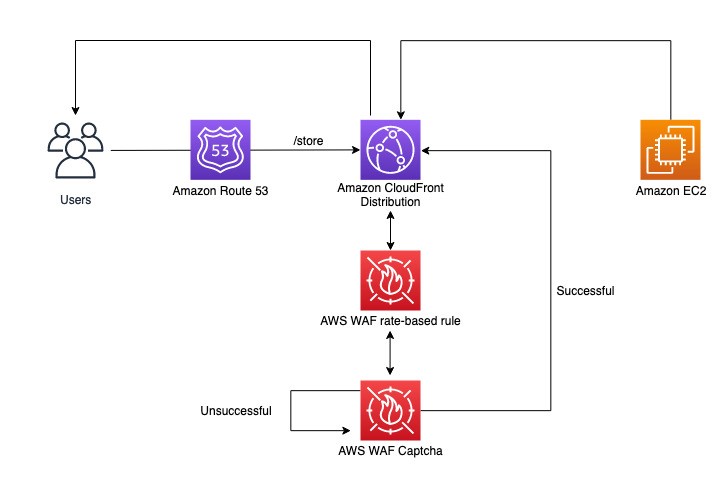
    In this blog post, you’ll learn how you can use a Completely Automated Public Turing test to tell Computers and Humans Apart (CAPTCHA) with other AWS WAF controls as part of a layered approach to provide comprehensive protection against bot traffic. We’ll describe a workflow that tracks the number of incoming requests to a site’s store page. The workflow then limits those requests if they exceed a certain threshold. Requests from IP addresses that exceed the threshold will be presented a CAPTCHA challenge to prove that the requests are being made by a human.
    Amazon Web Services (AWS) offers many tools and recommendations that companies can use as they face challenges with bot traffic on their websites. Web applications can be compromised through a variety of vectors, including cross-site scripting, SQL injection, path traversal, local file inclusion, and distributed denial-of-service (DDoS) attacks. AWS WAF offers managed rules that are designed to provide protection against common application vulnerabilities or other unwanted web traffic, without requiring you to write your own rules.
    There are some web attacks like web scraping, credential stuffing, and layer 7 DDoS attempts conducted by bots (as well as by humans) that target sensitive areas of your website, such as your store page. A CAPTCHA mitigates undesirable traffic by requiring the visitor to complete challenges before they are allowed to access protected resources. You can implement CAPTCHA to help prevent unwanted activities. Last year, AWS introduced AWS WAF CAPTCHA, which allows customers to set up AWS WAF rules that require CAPTCHA challenges to be completed for common targets such as forms (for example, search forms).
    Scenario
    Consider an attack where the unauthorized user is attempting to overwhelm a site’s store page by repeatedly sending search requests for different items.
    Assume that traffic visits a website that is hosted through Amazon CloudFront and attempts the above behavior on the /store URL. In this scenario, there is a rate-based rule in place that will track the number of requests coming in from each IP. This rate-based rule tracks the rate of requests for each originating IP address and invokes the rule action on IPs with rates that go over the limit. With CAPTCHA implemented as the rule action, excessive attempts to search within a 5-minute window will result in a CAPTCHA challenge being presented to the user. This workflow is shown in Figure 1.

    Figure 1: User visits a store page and is evaluated by a rate-based rule

    When a user solves a CAPTCHA challenge, AWS automatically generates and encrypts a token and sends it to the client as a cookie. The client requests aren’t challenged again until the token has expired. AWS WAF calculates token expiration by using the immunity time configuration. You can configure the immunity time in a web access control list (web ACL) CAPTCHA configuration and in the configuration for a rule’s action setting. When a user provides an incorrect answer to a CAPTCHA challenge, the challenge informs the user and loads a new puzzle. When the user solves the challenge, the challenge automatically submits the original web request, updated with the CAPTCHA token from the successful puzzle completion.
    Walkthrough
    This workflow will require an AWS WAF rule within a new or existing rule group or web ACL. The rule will define how web requests are inspected and the action to take.
    To create an AWS WAF rate-based rule

    Open the AWS WAF console and in the left navigation pane, choose Web ACLs.
    Choose an existing web ACL, or choose Create web ACL at the top right to create a new web ACL.
    Under Rules, choose Add rules, and then in the drop-down list, choose Add my own rules and rule groups.
    For Rule type, choose Rule builder.
    In the Rule builder section, for Name, enter your rule name. For Type, choose Rate-based rule.
    In the Request rate details section, enter your rate limit (for example, 100). For IP address to use for rate limiting, choose Source IP address, and for Criteria to count requests toward rate limit, choose Only consider requests that match criteria in a rule statement.
    For Count only the requests that match the following statement, choose Matches the statement from the drop-down list.
    In the Statement section, for Inspect, choose URI path. For Match type , choose Contains string.
    For String to match, enter the URI path of your web page (for example, /store).
    In the Action section, choose CAPTCHA.
    (Optional) For Immunity time, choose Set a custom immunity time for this rule, or keep the default value (300 seconds).
    To finish, choose Add rule, and then choose Save to add the rule to your web ACL.

    After you add the rule, go to the Rules tab of your web ACL and navigate to your rule. Confirm that the output resembles what is shown in Figure 2. You should have a rate-based rule with a scope-down statement that matches the store URI path you entered earlier, and the action should be set to CAPTCHA.

    Figure 2: Finished rate-based rule with CAPTCHA action

    The following is the JSON for the CAPTCHA rule that you just created. You can use this to validate your configuration. You can also use this JSON in the rule builder while creating the rule.
    {
    “Name”: “CaptchaOnRBR”,
    “Priority”: 0,
    “Statement”: {
    “RateBasedStatement”: {
    “Limit”: 100,
    “AggregateKeyType”: “IP”,
    “ScopeDownStatement”: {
    “ByteMatchStatement”: {
    “SearchString”: “/store”,
    “FieldToMatch”: {
    “UriPath”: {}
    },
    “TextTransformations”: [
    {
    “Priority”: 0,
    “Type”: “NONE”
    }
    ],
    “PositionalConstraint”: “CONTAINS”
    }
    }
    }
    },
    “Action”: {
    “Captcha”: {}
    },
    “VisibilityConfig”: {
    “SampledRequestsEnabled”: true,
    “CloudWatchMetricsEnabled”: true,
    “MetricName”: “CaptchaOnRBR”
    },
    “CaptchaConfig”: {
    “ImmunityTimeProperty”: {
    “ImmunityTime”: 60
    }
    }
    }
    After you complete this configuration, the rule will be invoked when an IP address unsuccessfully attempts to search the store at a rate that exceeds the threshold. This user will be presented with a CAPTCHA challenge, as shown in Figure 6. If the user is successful, they will be routed back to the store page. Otherwise, they will be served a new puzzle until it is solved.

    Figure 3: CAPTCHA challenge presented to a request that exceeded the threshold

    Implementing rate-based rules and CAPTCHA also allows you to track IP addresses, limit the number of invalid search attempts, and use the specific IP information available to you within sampled requests and AWS WAF logs to work to prevent that traffic from affecting your resources. Additionally, you have visibility into IPs addresses blocked by rate-based rules so that you can later add these addresses to a block list or create custom logic as needed to mitigate false positives.
    Conclusion
    In this blog post, you learned how to configure and deploy a CAPTCHA challenge with AWS WAF that checks for web requests that exceed a certain rate threshold and requires the client sending such requests to solve a challenge. Please note the additional charge for enabling CAPTCHA on your web ACL (pricing can be found here). Although CAPTCHA challenges are simple for humans to complete, they should be harder for common bots to complete with any meaningful rate of success. You can use a CAPTCHA challenge when a block action would stop too many legitimate requests, but letting all traffic through would result in unacceptably high levels of unwanted requests, such as from bots.
    For more information and guidance on AWS WAF rate-based rules, see the blog post The three most important AWS WAF rate-based rules and the AWS whitepaper AWS Best Practices for DDoS Resiliency. You can also check out these additional resources:

    Using AWS WAF with CAPTCHA (YouTube video)
    Best practices for using the CAPTCHA and Challenge actions (AWS WAF Developer Guide)
    Reduce Unwanted Traffic on Your Website with New AWS WAF Bot Control
    Fine-tune and optimize AWS WAF Bot Control mitigation capability
    Detect and block advanced bot traffic

     If you have feedback about this blog post, submit comments in the Comments section below. You can also start a new thread on AWS WAF re:Post to get answers from the community.
    Want more AWS Security news? Follow us on Twitter.

    Abhinav Bannerjee
    Abhinav is a Solutions Architect based out of Texas. He works closely with small to medium sized businesses to help them scale their adoption of Amazon Web Services.

    Fenil Patel
    Fenil is a Solutions Architect based out of New Jersey. His main focus is helping customers optimize and secure content delivery using AWS Edge Services.

    Powered by WPeMatico

  • Fall 2022 SOC reports now available in Spanish

    Fall 2022 SOC reports now available in Spanish

    Spanish version >>
    We continue to listen to our customers, regulators, and stakeholders to understand their needs regarding audit, assurance, certification, and attestation programs at Amazon Web Services (AWS). We are pleased to announce that Fall 2022 System and Organization Controls (SOC) 1, SOC 2, and SOC 3 reports are now available in Spanish. These translated reports will help drive greater engagement and alignment with customer and regulatory requirements across Latin America and Spain.
    The Spanish language version of the reports does not contain the independent opinion issued by the auditors or the control test results, but you can find this information in the English language version. Stakeholders should use the English version as a complement to the Spanish version.
    Translated SOC reports in Spanish are available to customers through AWS Artifact. Translated SOC reports in Spanish will be published twice a year, in alignment with the Fall and Spring reporting cycles.
    We value your feedback and questions—feel free to reach out to our team or give feedback about this post through the Contact Us page.
    If you have feedback about this post, submit comments in the Comments section below.
    Want more AWS Security news? Follow us on Twitter.
     

    Spanish
    Los informes SOC de Otoño de 2022 ahora están disponibles en español
    Seguimos escuchando a nuestros clientes, reguladores y partes interesadas para comprender sus necesidades en relación con los programas de auditoría, garantía, certificación y atestación en Amazon Web Services (AWS). Nos complace anunciar que los informes SOC 1, SOC 2 y SOC 3 de AWS de Otoño de 2022 ya están disponibles en español. Estos informes traducidos ayudarán a impulsar un mayor compromiso y alineación con los requisitos regulatorios y de los clientes en las regiones de América Latina y España.
    La versión en inglés de los informes debe tenerse en cuenta en relación con la opinión independiente emitida por los auditores y los resultados de las pruebas de controles, como complemento de las versiones en español.
    Los informes SOC traducidos en español están disponibles en AWS Artifact. Los informes SOC traducidos en español se publicarán dos veces al año según los ciclos de informes de Otoño y Primavera.
    Valoramos sus comentarios y preguntas; no dude en ponerse en contacto con nuestro equipo o enviarnos sus comentarios sobre esta publicación a través de nuestra página Contáctenos.
    Si tienes comentarios sobre esta publicación, envíalos en la sección Comentarios a continuación.
    ¿Desea obtener más noticias sobre seguridad de AWS? Síguenos en Twitter.

    Rodrigo Fiuza
    Rodrigo is a Security Audit Manager at AWS, based in São Paulo. He leads audits, attestations, certifications, and assessments across Latin America, Caribbean and Europe. Rodrigo has previously worked in risk management, security assurance, and technology audits for the past 12 years.

    Andrew Najjar
    Andrew is a Compliance Program Manager at Amazon Web Services. He leads multiple security and privacy initiatives within AWS and has 8 years of experience in security assurance. Andrew holds a master’s degree in information systems and bachelor’s degree in accounting from Indiana University. He is a CPA and AWS Certified Solution Architect – Associate.

    Ryan Wilks
    Ryan is a Compliance Program Manager at Amazon Web Services. He leads multiple security and privacy initiatives within AWS. Ryan has 11 years of experience in information security and holds ITIL, CISM and CISA certifications.

    Nathan Samuel
    Nathan is a Compliance Program Manager at Amazon Web Services. He leads multiple security and privacy initiatives within AWS. Nathan has a Bachelors of Commerce degree from the University of the Witwatersrand, South Africa and has 17 years’ experience in security assurance and holds the CISA, CRISC, CGEIT, CISM, CDPSE and Certified Internal Auditor certifications.

    Powered by WPeMatico

  • C5 Type 2 attestation report now available with 156 services in scope

    C5 Type 2 attestation report now available with 156 services in scope

    We continue to expand the scope of our assurance programs at Amazon Web Services (AWS), and we are pleased to announce that AWS has successfully completed the 2022 Cloud Computing Compliance Controls Catalogue (C5) attestation cycle with 156 services in scope. This alignment with C5 requirements demonstrates our ongoing commitment to adhere to the heightened expectations for cloud service providers. AWS customers in Germany and across Europe can run their applications on AWS Regions in scope of the C5 report with the assurance that AWS aligns with C5 requirements.
    The C5 attestation scheme is backed by the German government and was introduced by the Federal Office for Information Security (BSI) in 2016. AWS has adhered to the C5 requirements since their inception. C5 helps organizations demonstrate operational security against common cyberattacks when using cloud services within the context of the German Government’s Security Recommendations for Cloud Computing Providers.
    Independent third-party auditors evaluated AWS for the period October 1, 2021, through September 30, 2022. The C5 report illustrates AWS’ compliance status for both the basic and additional criteria of C5. Customers can download the C5 report through AWS Artifact. AWS Artifact is a self-service portal for on-demand access to AWS compliance reports. Sign in to AWS Artifact in the AWS Management Console, or learn more at Getting Started with AWS Artifact.
    AWS has added the following 16 services to the current C5 scope:

    Amazon AppFlow
    AWS App Runner
    AWS Application Migration Service
    AWS CloudShell
    Amazon DevOps Guru
    AWS Elastic Disaster Recovery
    Amazon HealthLake
    AWS IoT SiteWise
    AWS Lake Formation
    Amazon Location Service
    Amazon Managed Services for Prometheus
    Amazon MemoryDB for Redis
    AWS Private Certificate Authority
    AWS Resource Access Manager
    AWS Signer
    Amazon WorkSpaces Web

    At present, the services offered in the Frankfurt, Dublin, London, Paris, Milan, Stockholm and Singapore Regions are in scope of this certification. For up-to-date information, see the AWS Services in Scope by Compliance Program page and choose C5.
    AWS strives to continuously bring services into the scope of its compliance programs to help you meet your architectural and regulatory needs. If you have questions or feedback about C5 compliance, reach out to your AWS account team.
    To learn more about our compliance and security programs, see AWS Compliance Programs. As always, we value your feedback and questions; reach out to the AWS Compliance team through the Contact Us page.
    If you have feedback about this post, submit comments in the Comments section below.
    Want more AWS Security how-to content, news, and feature announcements? Follow us on Twitter.

    Julian Herlinghaus
    Julian is a Manager in AWS Security Assurance based in Berlin, Germany. He leads third-party and customer security audits across Europe and specifically the DACH region. He has previously worked as Information Security department lead of an accredited certification body and has multiple years of experience in information security and security assurance & compliance.

    Andreas Terwellen
    Andreas is a senior manager in security audit assurance at AWS, based in Frankfurt, Germany. His team is responsible for third-party and customer audits, attestations, certifications, and assessments across Europe. Previously, he was a CISO in a DAX-listed telecommunications company in Germany. He also worked for different consulting companies managing large teams and programs across multiple industries and sectors.

    Powered by WPeMatico

  • Fall 2022 PCI DSS report available with six services added to compliance scope

    Fall 2022 PCI DSS report available with six services added to compliance scope

    We’re continuing to expand the scope of our assurance programs at Amazon Web Services (AWS) and are pleased to announce that six additional services have been added to the scope of our Payment Card Industry Data Security Standard (PCI DSS) certification. This provides our customers with more options to process and store their payment card data and architect their cardholder data environment (CDE) securely on AWS.
    You can see the full list of services on our Services in Scope by Compliance program page. The six additional services are:

    AWS CloudShell
    AWS Elastic Disaster Recovery
    Amazon Managed Services for Prometheus
    Amazon Managed Workflows for Apache Airflow (Amazon MWAA)
    AWS Signer
    Amazon WorkSpaces Web

    AWS was evaluated by Coalfire, a third-party Qualified Security Assessor (QSA). Customers can access the Attestation of Compliance (AOC) report demonstrating our PCI compliance status through AWS Artifact.
    To learn more about our PCI program and other compliance and security programs, see the AWS Compliance Programs page. As always, we value your feedback and questions; reach out to the AWS Compliance team through the Contact Us page.
    Want more AWS Security news? Follow us on Twitter.

    Michael Oyeniya
    Michael is a Compliance Program Manager at AWS on the Global Audits team, managing the PCI compliance program. He holds a Master’s degree in management and has over 18 years of experience in information technology security risk and control.

    Powered by WPeMatico

  • AWS achieves HDS certification in two additional Regions

    AWS achieves HDS certification in two additional Regions

    We’re excited to announce that two additional AWS Regions—Asia Pacific (Jakarta) and Europe (Milan)—have been granted the Health Data Hosting (Hébergeur de Données de Santé, HDS) certification. This alignment with HDS requirements demonstrates our continued commitment to adhere to the heightened expectations for cloud service providers. AWS customers who handle personal health data can use HDS-certified Regions with confidence to manage their workloads.
    The following 18 Regions are in scope for this certification:

    US East (Ohio)
    US East (Northern Virginia)
    US West (Northern California)
    US West (Oregon)
    Asia Pacific (Jakarta)
    Asia Pacific (Seoul)
    Asia Pacific (Mumbai)
    Asia Pacific (Singapore)
    Asia Pacific (Sydney)
    Asia Pacific (Tokyo)
    Canada (Central)
    Europe (Frankfurt)
    Europe (Ireland)
    Europe (London)
    Europe (Milan)
    Europe (Paris)
    Europe (Stockholm)
    South America (São Paulo)

    Introduced by the French governmental agency for health, Agence Française de la Santé Numérique (ASIP Santé), the HDS certification aims to strengthen the security and protection of personal health data. Achieving this certification demonstrates that AWS provides a framework for technical and governance measures to secure and protect personal health data, governed by French law.
    Independent third-party auditors evaluated and certified AWS on January 13, 2023. The Certificate of Compliance that demonstrates AWS compliance status is available on the Agence du Numérique en Santé (ANS) website and AWS Artifact. AWS Artifact is a self-service portal for on-demand access to AWS compliance reports. Sign in to AWS Artifact in the AWS Management Console, or learn more at Getting Started with AWS Artifact.
    For up-to-date information, including when additional Regions are added, see the AWS Compliance Programs page, and choose HDS.
    AWS strives to continuously bring services into the scope of its compliance programs to help you meet your architectural and regulatory needs. If you have questions or feedback about HDS compliance, reach out to your AWS account team.
    To learn more about our compliance and security programs, see AWS Compliance Programs. As always, we value your feedback and questions; reach out to the AWS Compliance team through the Contact Us page.
    If you have feedback about this post, submit comments in the Comments section below.
    Want more AWS Security news? Follow us on Twitter.

    Janice Leung
    Janice is a security audit program manager at AWS, based in New York. She leads security audits across Europe and previously worked in security assurance and technology risk management in the financial industry for 11 years.

    Powered by WPeMatico

  • How to encrypt sensitive caller voice input in Amazon Lex

    How to encrypt sensitive caller voice input in Amazon Lex

    In the telecommunications industry, sensitive authentication and user data are typically received through mobile voice and keypads, and companies are responsible for protecting the data obtained through these channels. The increasing use of voice-driven interactive voice response (IVR) has resulted in a need to provide solutions that can protect user data that is gathered from mobile voice inputs. In this blog post, you’ll see how to protect a caller’s sensitive voice data that was captured through Amazon Lex by using data encryption implemented through AWS Lambda functions. The solution described in this post helps you to protect customer data received through voice channels from inadvertent or unknown access. The solution also includes decryption capabilities, which give an authorized administrator or operator the ability to decrypt user data from a Lambda console.
    Solution overview
    To demonstrate the IVR solution described in this post, a caller speaks two sensitive pieces of data—credit card number and zip code—from an Amazon Connect contact flow. The spoken values are encrypted and returned to the contact flow to be stored in contact attributes. The encrypted ciphertext is retained as a contact attribute for decryption purposes. Amazon CloudWatch Logs is enabled in the contact flow, but only the encrypted values are logged in log streams.
    For this solution, conversation logs for this Amazon Lex bot are not enabled. An operator with assigned AWS Identity and Access Management (IAM) permissions can monitor the logged encrypted entries from CloudWatch Logs. For more information, see Working with log groups and log streams in the Amazon CloudWatch Logs User Guide.
    Solution architecture
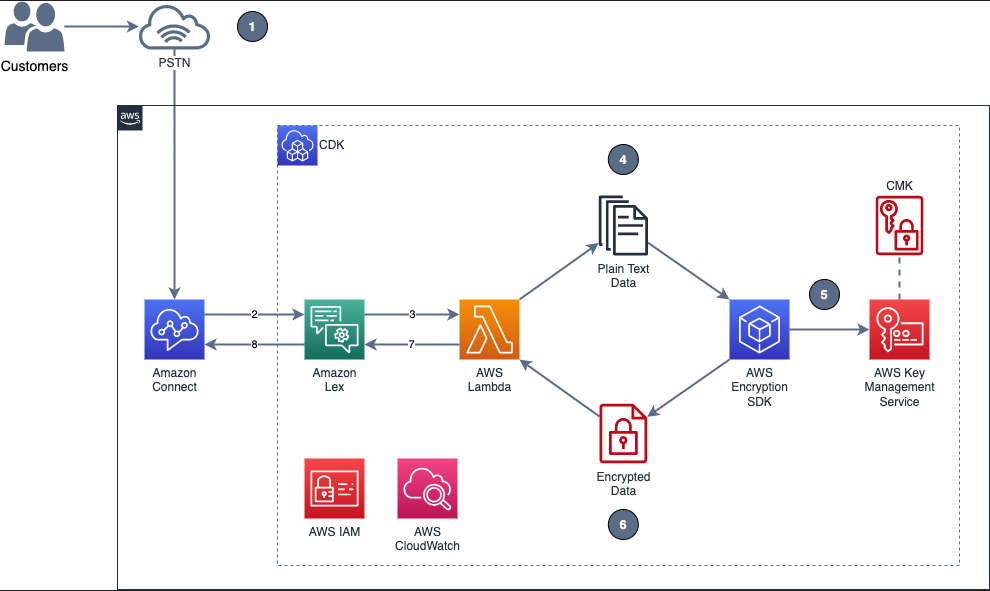
    Figure 1 shows the overview of the solution described in this blog post.

    Figure 1: Example of solution architecture

    Figure 1 shows the following high-level steps of the solution, and the number labels correspond to the following steps.

    A caller places an inbound call.
    An Amazon Connect contact flow leverages a Get customer input block, backed by an Amazon Lex bot, to prompt the caller for numerical data.
    The Amazon Lex bot invokes the Lambda function dev-encryption-core-EncryptFn.
    The Lambda function uses the AWS Encryption SDK to encrypt the caller’s plain text data.
    The AWS Encryption SDK obtains encryption keys from AWS Key Management Service (AWS KMS).
    The caller’s data is encrypted by using the AWS KMS keys obtained from AWS KMS.
    The Lambda function appends the encrypted data to the Amazon Lex bot session attributes.
    Amazon Lex returns the fully encrypted data back to Amazon Connect.

    Overview of a contact flow

    Figure 2: Contact flow captures input values using Amazon Lex and returns their encrypted values

    Figure 2 shows an overview of the contact flow, which has two main steps:

    The first numerical data (in this example, an encrypted credit card number value) is stored in contact attributes.
    The second numerical data (in this example, an encrypted zip code value) is stored in contact attributes.

    Prerequisites
    This solution uses the following AWS services:

    Amazon Connect
    AWS Identity and Access Management (IAM)
    AWS Key Management Service (AWS KMS)
    AWS Lambda
    Amazon Lex

    The following need to be installed in your local machine:

    Git
    Node and NPM (14.x or higher)
    TypeScript
    AWS Cloud Development Kit (AWS CDK) 2.0 or higher

    To implement the solution in this post, you first need the Amazon Connect instance prerequisite in place.
    To set up the Amazon Connect instance (if none exists)

    Create an Amazon Connect instance with a claimed phone number and a configured Amazon Connect user linked to a basic routing profile. For more information about setting up a contact center, see Set up your contact center in the Amazon Connect Administrator Guide.
    Assign the CallCenterManager or Admin security profile to an Amazon Connect user.
    In the newly created Amazon Connect instance, under the Overview section, find the access URL with the format https://.awsapps.com/connect/login

    Make note of the access URL, which you will use later to log in to the Amazon Connect Dashboard.

    Log in to your Amazon Connect instance with a Connect user that has Admin or CallCenterManager permissions.

    Solution procedures
    This solution includes the following procedures:

    Clone the project or download the solution zip file.
    Create AWS resources needed for encryption and decryption.
    Configure the Amazon Lex bot in Amazon Connect.
    Create the contact flow in Amazon Connect.
    Validate the solution.
    Decrypt the collected data.

    To clone or download the solution

    Log in to the GitHub repo.
    Clone or download the solution files to your local machine.

    The downloaded file contains the artifacts needed for the deployment.
    To create AWS resources needed for encryption and decryption

    From the command line, change directory to the project’s root directory.
    Run npm install.
    Run npm run build to transpile TypeScript to JavaScript and package code and its dependencies before deploying to AWS.
    Run cdk deploy CoreStack.

    To configure the Amazon Lex bot in your Amazon Connect instance

    In the Amazon Connect console, choose Contact flows and scroll to the Amazon Lex section.

    Figure 3: Select Contact flows

    From the Bot menu, select secure_LexInput(Classic). Then select +Add Amazon Lex Bot.

    Figure 4: Configure the Amazon Lex bot to Amazon Connect

    To import contact flow into Amazon Connect

    In the Amazon Connect console, choose Overview, and then choose Login as administrator.
    From the Routing menu on the left side, choose Contact flows to show the list of contact flows.
    Choose Create Contact flow.
    Choose the arrow to the right of the Save button and choose Import flow (beta). This imports the contact flow that you previously downloaded in the procedure To clone or download the solution. The contact flow already has the Amazon Lex bot configured.

    Figure 5: Select Import flow (beta)

    In the upper right corner of the contact flow, choose Save, and then choose OK to save the changes.
    Choose Publish to make the contact flow ready for use during the validation steps.
    (Optional) Claim a phone number (if none is available), using the following steps:

    In the Connect Dashboard, on the navigation menu, choose Channels, and then choose Phone numbers.
    On the right side of the page, choose Claim a number.
    Select the DID (Direct Inward Dialing) tab. Use the drop-down arrow to choose your country/region. When numbers are returned, choose one.
    Write down the phone number. You call it later in this post.

    (Optional) On the Edit Phone number page, in the Description box, you can type a note if desired.
    To assign the contact flow to your claimed phone number, for Contact flow / IVR, choose the drop-down arrow, and then choose Secure_Lex_Input.
    Choose Save.

    Figure 6: Under Contact flow / IVR, select the imported contact flow

    For more information, see Set up phone numbers for your contact center in the Amazon Connect Administrator Guide.
    To validate the solution

    Dial the test phone number to go through the voice prompt flow.
    When prompted, speak a 16-digit credit card number (you have a maximum of two retries), then speak a 5-digit zip code (also a maximum of two retries).
    After you complete your test call, review the log streams in Amazon CloudWatch Logs to confirm that the digits that you entered are now encrypted and stored as a contact attribute. The two entered values zipcode and creditcard are stored in contact attributes. Both are encrypted.

    Figure 7: Sample log showing encrypted values for zipcode and creditcard

    Log in to your Amazon Connect Dashboard as a Supervisor. The URL is provided after the connect instance has been created. In the navigation menu, choose Contact search.

    Figure 8: Choose Contact search to look for the call information

    Locate your inbound call on the Contact search list. Note that it can take up to 60 seconds for data to appear in the Contact search list.
    Select the Contact ID for your call.

    Figure 9: The Contact search showing the contact details for your test call

    Copy the encrypted values for creditcard and zipcode and make note of them; you will use these values in the next procedure.

    Figure 10: Contact attributes stored in a contact flow are registered as part of the contact details

    To decrypt the collected data

    In the AWS Lambda console, choose Functions.
    Use the Search bar to look for the dev-encryption-core-DecryptFn Lambda function, and then select the name link to open it.
    Under folder encryption-master, open the test folder. Under the tab events, locate the file decrypt.json.
    Use the following steps to create a sample test event in the console by using the contents from decrypt.json. For more details, see Testing Lambda functions in the console.

    Choose the down arrow on the right side of Test.
    Choose Configure test event.
    Choose Create new test event.
    For Event name, enter decryptTest.
    Paste the contents from decrypt.json.

    {
    “Details”: {
    “Parameters”: {
    “encrypted”: “”
    }
    }
    }

    Choose Save.

    Use the encrypted values saved in the Validate a solution procedure and replace the ones in the recently created test event.

    Figure 11: Replace the creditcard or zipCode values with the ones from the Contact Search page

    Choose Test. The output from the test shows the values decrypted by the Lambda function. This is shown in Figure 12 under the Execution result tab.

    Figure 12: Result from the decryption operation

    Note: Make sure that only the appropriate authorized administrator or operator, application, or AWS service is able to invoke the decryption Lambda function.

    You have now successfully implemented the solution by encrypting and decrypting the voice input of your test call, which you collected through Amazon Lex.
    Cleanup
    To avoid incurring future charges, follow these steps to clean up the deployed resources that you created when implementing this solution.
    To delete the Amazon Connect instance

    In the Amazon Connect console, under Instance alias, select the name of the Amazon Connect instance, and choose Delete.
    When prompted, type the name of the instance, and then choose Delete.

    To delete the Amazon Lex bot

    In the Amazon Lex console, choose the bot that you created in the To configure the Amazon Lex bot procedure.
    Choose Delete, and then choose Continue.

    To delete the AWS CloudFormation stack

    In the AWS CloudFormation console, on the Stacks page, select the stack you created in the procedure To create AWS resources needed for encryption and decryption.
    In the stack details pane, choose Delete.
    Choose Delete stack when prompted. This deletes the Amazon S3 bucket, IAM roles and AWS Lambda functions you created for testing. This will also schedule a deletion date on the AWS KMS key.

    Conclusion
    In this post, you learned how an Amazon Connect contact flow can collect voice inputs from a caller by using Amazon Lex, and how you can encrypt these inputs by using your own AWS KMS key. This solution can help improve the security of voice input that is collected through Amazon Connect. For cost information, see the Amazon Connect pricing page.
    For more information, see the blog post Creating a secure IVR solution with Amazon Connect and the topic Encrypt customer input (using OpenSSL) in the Amazon Connect Administrator Guide. As previously mentioned, the increasing use of voice-driven IVR has resulted in a need to provide solutions that can protect user data gathered from mobile voice inputs.
    Additional resources include the AWS Lambda Developer Guide, the Amazon Lex Developer Guide, the Amazon Connect Administrator Guide, the AWS Nodejs SDK, and the AWS SDK for Python (Boto3).
    If you need help with setting up this solution, you can get assistance from AWS Professional Services. You can also seek assistance from Amazon Connect partners available worldwide.
     If you have feedback about this post, submit comments in the Comments section below. If you have questions about this post, contact AWS Support.
    Want more AWS Security news? Follow us on Twitter.

    Herbert Guerrero
    Herbert is a Senior Proserve Consultant for Connect. He enjoys designing and developing high-usability and scalable solutions. Understanding success criteria helps Herbert work backwards and deliver well-architected solutions. His engineering background informs the way he engages with customers’ mental models of what their solutions should look like.

    Ed Valdez
    Ed is a Specialty Consultant with Amazon Web Services. As a software development professional with over 23 years of experience, he specializes on designing and delivering customer-centric solutions within the contact center domain.

    Powered by WPeMatico

  • How to revoke federated users’ active AWS sessions

    How to revoke federated users’ active AWS sessions

    When you use a centralized identity provider (IdP) for human user access, changes that an identity administrator makes to a user within the IdP won’t invalidate the user’s existing active Amazon Web Services (AWS) sessions. This is due to the nature of session durations that are configured on assumed roles. This situation presents a challenge for identity administrators.
    In this post, you’ll learn how to revoke access to specific users’ sessions on AWS assumed roles through the use of AWS Identity and Access Management (IAM) policies and service control policies (SCPs) via AWS Organizations.
    Session duration overview
    When you configure IAM roles, you have the option of configuring a maximum session duration that specifies how long a session is valid. By default, the temporary credentials provided to the user will last for one hour, but you can change this to a value of up to 12 hours.
    When a user assumes a role in AWS by using their IdP credentials, that role’s credentials will remain valid for the length of their session duration. It’s convenient for end users to have a maximum session duration set to 12 hours, because this prevents their sessions from frequently timing out and then requiring re-login. However, a longer session duration also poses a challenge if you, as an identity administrator, attempt to revoke or modify a user’s access to AWS from your IdP.
    For example, user John Doe is leaving the company and you want to verify that John has his privileges within AWS revoked. If John has access to IAM roles with long-session durations, then he might have residual access to AWS despite having his session revoked or his user identity deleted within the IdP. Perhaps John assumed a role for his daily work at 8 AM and then you revoked his credentials within the IdP at 9 AM. Because John had already assumed an AWS role, he would still have access to AWS through that role for the duration of the configured session, 8 PM if the session was configured for 12 hours. Therefore, as a security best practice, AWS recommends that you do not set the session duration length longer than is needed. This example is displayed in Figure 1.

    Figure 1: Session duration overview

    In order to restrict access despite the session duration being active, you could update the roles that are assumable from an IdP with a deny-all policy or delete the role entirely. However, this is a disruptive action for the users that have access to this role. If the role was deleted or the policy was updated to deny all, then users would no longer be able to assume the role or access their AWS environment. Instead, the recommended approach is to revoke access based on the specific user’s principalId or sourceIdentity values.
    The principalId is the unique identifier for the entity that made the API call. When requests are made with temporary credentials, such as assumed roles through IdPs, this value also includes the session name, such as JohnDoe@example.com. The sourceIdentity identifies the original user identity that is making the request, such as a user who is authenticated through SAML federation from an IdP. As a best practice, AWS recommends that you configure this value within the IdP, because this improves traceability for user sessions within AWS. You can find more information on this functionality in the blog post, How to integrate AWS STS SourceIdentity with your identity provider.
    Identify the principalId and sourceIdentity by using CloudTrail
    You can use AWS CloudTrail to review the actions taken by a user, role, or AWS service that are recorded as events. In the following procedure, you will use CloudTrail to identify the principalId and sourceIdentity contained in the CloudTrail record contents for your IdP assumed role.
    To identify the principalId and sourceIdentity by using CloudTrail

    Assume a role in AWS by signing in through your IdP.
    Perform an action such as a creating an S3 bucket.
    Navigate to the CloudTrail service.
    In the navigation pane, choose Event History.
    For Lookup attributes, choose Event name. For Event name, enter CreateBucket.

    Figure 2: Looking up the CreateBucket event in the CloudTrail event history

    Select the corresponding event record and review the event details. An example showing the userIdentity element is as follows.

    “userIdentity”: {
    “type”: “AssumedRole”,
    “principalId”:
    “AROATVGBKRLCHXEXAMPLE:JohnDoe@example.com”,
    “arn”: “arn:aws:sts::111122223333:assumed-
    role/roleexample/JohnDoe@example.com”,
    “accountId”: “111122223333”,
    “accessKeyId”: “ASIATVGBKRLCJEXAMPLE”,
    “sessionContext”: {
    “sessionIssuer”: {
    “type”: “Role”,
    “principalId”: “AROATVGBKRLCHXEXAMPLE”,
    “arn”:
    “arn:aws:iam::111122223333:role/roleexample”,
    “accountId”: “111122223333”,
    “userName”: “roleexample”
    },
    “webIdFederationData”: {},
    “attributes”: {
    “creationDate”: “2022-07-05T15:48:28Z”,
    “mfaAuthenticated”: “false”
    },
    “sourceIdentity”: “JohnDoe@example.com”
    }
    }

    In this event record, you can see that principalId is “AROATVGBKRLCHXEXAMPLE:JohnDoe@example.com” and sourceIdentity was specified as “JohnDoe@example.com”. Now that you have these values, let’s explore how you can revoke access by using SCP and IAM policies.
    Use an SCP to deny users based on IdP user name or revoke session token
    First, you will create an SCP, a policy that can be applied to an organization to offer central control of the maximum available permissions across the accounts in the organization. More information on SCPs, including steps to create and apply them, can be found in the AWS Organizations User Guide.
    The SCP will have a deny-all statement with a condition for aws:userid, which will evaluate the principalId field; and a condition for aws:SourceIdentity, which will evaluate the sourceIdentity field. In the following example SCP, the users John Doe and Mary Major are prevented from accessing AWS, in member accounts, regardless of their session duration, because each action will check against their aws:userid and aws:SourceIdentity values and be denied accordingly.
    SCP to deny access based on IdP user name

    {
    “Version”: “2012-10-17”,
    “Statement”: [
    {
    “Effect”: “Deny”,
    “Action”: “*”,
    “Resource”: “*”,
    “Condition”: {
    “StringLike”: {
    “aws:userid”: [
    “*:JohnDoe@example.com”,
    “*:MaryMajor@example.com”
    ]
    }
    }
    },
    {
    “Effect”: “Deny”,
    “Action”: “*”,
    “Resource”: “*”,
    “Condition”: {
    “StringEquals”: {
    “aws:SourceIdentity”: [
    “JohnDoe@example.com”,
    “MaryMajor@example.com”
    ]
    }
    }
    }
    ]
    }

    Use an IAM policy to revoke access in the AWS Organizations management account
    SCPs do not affect users or roles in the AWS Organizations management account and instead only affect the member accounts in the organization. Therefore, using an SCP alone to deny access may not be sufficient. However, identity administrators can revoke access in a similar way within their management account by using the following procedure.
    To create an IAM policy in the management account

    Sign in to the AWS Management Console by using your AWS Organizations management account credentials.
    Follow these steps to use the JSON policy editor to create an IAM policy. Use the JSON of the SCP shown in the preceding section, SCP to deny access based on IdP user name, in the IAM JSON editor.
    Follow these steps to add the IAM policy to roles that IdP users may assume within the account.

    Revoke active sessions when role chaining
    At this point, the user actions on the IdP assumable roles within the AWS organization have been blocked. However, there is still an edge case if the target users use role chaining (use an IdP assumedRole credential to assume a second role) that uses a different RoleSessionName than the one assigned by the IdP. In a role chaining situation, the users will still have access by using the cached credentials for the second role.
    This is where the sourceIdentity field is valuable. After a source identity is set, it is present in requests for AWS actions that are taken during the role session. The value that is set persists when a role is used to assume another role (role chaining). The value that is set cannot be changed during the role session. Therefore, it’s recommended that you configure the sourceIdentity field within the IdP as explained previously. This concept is shown in Figure 3.

    Figure 3: Role chaining with sourceIdentity configured

    A user assumes an IAM role via their IdP (#1), and the CloudTrail record displays sourceIdentity: JohnDoe@example.com (#2). When the user assumes a new role within AWS (#3), that CloudTrail record continues to display sourceIdentity: JohnDoe@example.com despite the principalId changing (#4).
    However, if a second role is assumed in the account through role chaining and the sourceIdentity is not set, then it’s recommended that you revoke the issued session tokens for the second role. In order to do this, you can use the SCP policy at the end of this section, SCP to revoke active sessions for assumed roles. When you use this policy, the issued credentials related to the roles specified will be revoked for the users currently using them, and only users who were not denied through the previous SCP or IAM policies restricting their aws:userid will be able to reassume the target roles to obtain a new temporary credential.
    If you take this approach, you will need to use an SCP to apply across the organization’s member accounts. The SCP must have the human-assumable roles for role chaining listed and a token issue time set to a specific time when you want users’ access revoked. (Normally, this time window would be set to the present time to immediately revoke access, but there might be circumstances in which you wish to revoke the access at a future date, such as when a user moves to a new project or team and therefore requires different access levels.) In addition, you will need to follow the same procedures in your management account by creating a customer-managed policy by using the same JSON with the condition statement for aws:PrincipalArn removed. Then attach the customer managed policy to the individual roles that are human-assumable through role chaining.
    SCP to revoke active sessions for assumed roles

    {
    “Version”: “2012-10-17”,
    “Statement”: [
    {
    “Sid”: “RevokeActiveSessions”,
    “Effect”: “Deny”,
    “Action”: [
    “*”
    ],
    “Resource”: [
    “*”
    ],
    “Condition”: {
    “StringEquals”: {
    “aws:PrincipalArn”: [
    “arn:aws:iam:::role/”,
    “arn:aws:iam:::role/”
    ]
    },
    “DateLessThan”: {
    “aws:TokenIssueTime”: “2022-06-01T00:00:00Z”
    }
    }
    }
    ]
    }

    Conclusion and final recommendations
    In this blog post, I demonstrated how you can revoke a federated user’s active AWS sessions by using SCPs and IAM policies that restrict the use of the aws:userid and aws:SourceIdentity condition keys. I also shared how you can handle a role chaining situation with the aws:TokenIssueTime condition key.
    This exercise demonstrates the importance of configuring the session duration parameter on IdP assumed roles. As a security best practice, you should set the session duration to no longer than what is needed to perform the role. In some situations, that could mean an hour or less in a production environment and a longer session in a development environment. Regardless, it’s important to understand the impact of configuring the maximum session duration in the user’s environment and also to have proper procedures in place for revoking a federated user’s access.
    This post also covered the recommendation to set the sourceIdentity for assumed roles through the IdP. This value cannot be changed during role sessions and therefore persists when a user conducts role chaining. Following this recommendation minimizes the risk that a user might have assumed another role with a different session name than the one assigned by the IdP and helps prevent the edge case scenario of revoking active sessions based on TokenIssueTime.
    You should also consider other security best practices, described in the Security Pillar of the AWS Well-Architected Framework, when you revoke users’ AWS access. For example, rotating credentials such as IAM access keys in situations in which IAM access keys are regularly used and shared among users. The example solutions in this post would not have prevented a user from performing AWS actions if that user had IAM access keys configured for a separate IAM user in the environment. Organizations should limit long-lived security credentials such as IAM keys and instead rotate them regularly or avoid their use altogether. Also, the concept of least privilege is highly important to limit the access that users have and scope it solely to the requirements that are needed to perform their job functions. Lastly, you should adopt a centralized identity provider coupled with the AWS IAM Identity Center (successor to AWS Single Sign-On) service in order to centralize identity management and avoid the need for multiple credentials for users.
    If you have feedback about this post, submit comments in the Comments section below. If you have questions about this post, start a new thread on the AWS Identity and Access Management re:Post or contact AWS Support.
    Want more AWS Security news? Follow us on Twitter.

    Matt Howard
    Matt is a Principal Technical Account Manager (TAM) for AWS Enterprise Support. As a TAM, Matt provides advocacy and technical guidance to help customers plan and build solutions using AWS best practices. Outside of AWS, Matt enjoys spending time with family, sports, and video games.

    Powered by WPeMatico